Editing building demands
Define the demand models of the consumers, edit them in the table editor, import them from clipboard or file and export them as time series
Overview
The demand model of a consumer defines how its heating demand (and optionally cooling and domestic hot water demand) is described: constant, from predefined profiles by building type, or from custom time series. Editing is done individually on the Building demand tab of the network properties, or for all consumers together in the table editor with import and export functions.
How to open
- Menu Network > Edit building demands … opens the table editor
- alternatively the
 Building demand table … button on the Building demand tab of the network properties
 - individual consumers: select a consumer node in the 3D view, the demand properties appear on the Building demand tab, see Consumers and connection load
Demand models
The Demand model: selection field offers four model types:
| Model type | Description |
|---|---|
| Constant demand | Temporally constant load, defined via Heating load: [kW], Supply temperature secondary side: [°C] and Temperature difference secondary side: [K] |
| Predefined time series | Demand profile is generated from the building type and characteristic values; parameters via Edit demand parameters …, the resulting curve is shown as a chart |
| Custom time series from values | Custom time series entered directly as a value table (Time [h] / Heat demand [kW]); Copy header for import and Paste from clipboard ease the data exchange with spreadsheets |
| Custom time series from file | Reference to a TSV file (File:); with several data columns, the desired column is chosen under Select column in data file (for the format see TSV files) |
For the predefined time series, an overview summarizes the demand parameters, including building type, heating curve, max. heating power, annual heating energy, specific heating demand, full-load hours, as well as cooling and domestic hot water characteristics. Available building types: single-family house, multi-family house, office building, care home, retail building, hotel, day-care center / kindergarten, hospital, canteen, school, sports hall.
The With domestic hot water demand (default: active) and With cooling demand (default: inactive) check boxes enable the respective demand components. For domestic hot water, two preparation modes are available:
| DHW preparation mode | Behavior |
|---|---|
| In scheduled time windows | Storage model: DHW is generated in two preparation windows per day (02:00–04:00 and, as overflow, 12:00–14:00) at the DHW peak power; the required Hot water supply temperature: [°C] is taken into account |
| In addition to heating | Simple model: the scaled DHW profile is added to the heating profile, without separate preparation windows and without a separate DHW supply temperature |
Heating curve
Via Heating curve:, a heating curve from the project database is assigned to each consumer. It defines how the secondary-side supply temperature changes with the outdoor temperature; the same curve can be reused across multiple consumers. The Heating curve color mode on the Building demand tab shows the assignments in the network.
Table editor
The Edit building demands dialog shows all consumers of the active network in four tabs:
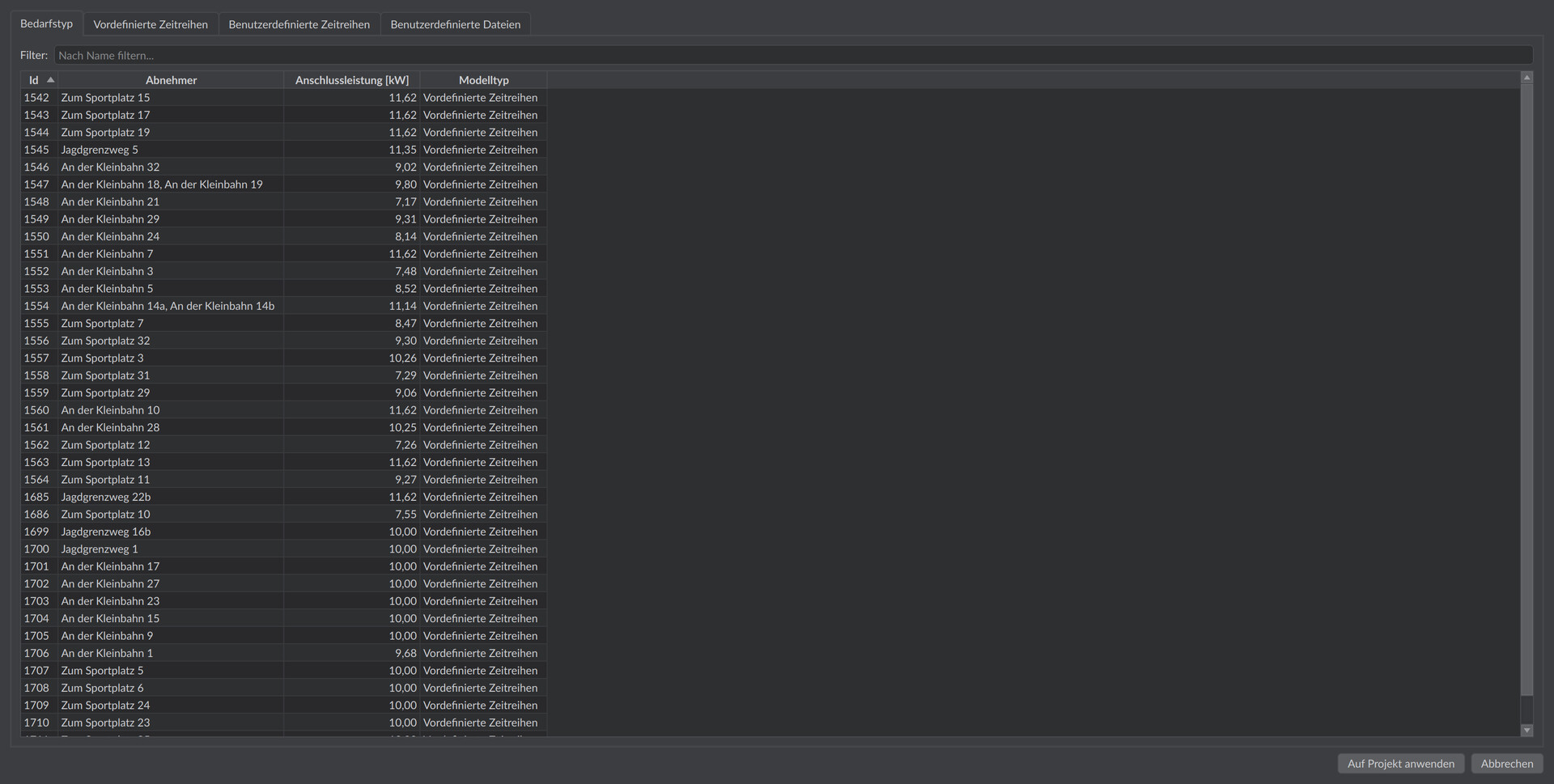
| Tab | Content |
|---|---|
| Demand type | Overview with the columns Id, Consumer, Connection load [kW] and Model type; name, connection load and model type are directly editable; the Filter: input field filters by name |
| Predefined time series | Parameter table with the columns Id, Consumer, Connection load [kW], Building type, Usable area [m²], Heating load [kW], Heat demand [kWh/a], Heating curve, Use hot water, DHW preparation mode, Energy demand for hot water [kWh], Hot water supply temperature [C], Ratio DHW/heating power [-], Use cooling, Cooling power [kW], Cooling energy demand [kWh/a] |
| Custom time series | Columns Id, Consumer, Time unit, Number of data points; Remove existing values deletes the stored time series |
| Custom files | Columns Id, Consumer, File path; Remove existing file references deletes the file assignments |
Each tab contains a Change all consumers to ’…’ button, which switches the model type of all consumers to the tab’s type. Changes are only applied with Apply to project; Cancel discards them.
Import from CSV or clipboard
The Import data … button opens the import dialog. The data can be inserted with Paste from clipboard or (for custom files) loaded from a TSV/CSV file with Read from file …; the text is directly editable in the dialog.
| Option | Default | Meaning |
|---|---|---|
| Number of lines to skip from the top: | 0 (parameter import: 1) | Skips header or comment lines at the start of the file |
| Column separator: | Tab | Additionally selectable: Space, Comma, Semicolon |
Format requirements: header line with units in square brackets, the first column is the time axis in [s], [h] or [d], the decimal separator is the point, and the unit of the data columns must be convertible to watts (e.g. [kW]). For parameter import, the rows are assigned via the node Id; for time series import, the column headings are matched against the node names in the project. The Information area shows the check result, such as IDs or names that cannot be assigned; only valid data can be applied with Ok.
Practical tip
For a bulk import from a spreadsheet, the assignment almost always fails at the same points: parameters are assigned via the node Id, whereas time series are assigned via the exact node name in the column heading. Also watch out for the point as the decimal separator and for the unit in square brackets in the column header. Always read the Information area before confirming - it lists IDs or names that cannot be assigned, before you apply erroneous data.
Export
- Export data … exports the table of the active tab (parameters or custom time series)
- Export time series … (only on the Predefined time series tab) generates time series for all consumers from the predefined profiles and exports them
The export dialog offers the following options:
| Option | Default | Meaning |
|---|---|---|
| Demand: | Heating + cooling + DHW (combined, signed) | Alternatively Heating only, Cooling only or Domestic hot water only |
| Consider node time shift | inactive | Shifts each demand profile by its optimized time shift from the simultaneity calculation; the output is then in its temporal resolution (e.g. 20 minutes). Only available if valid simultaneity results are present |
| Clipboard decimal: | Point (.) | Decimal separator for the clipboard export, alternatively Comma (,) |
Copy to clipboard transfers the data tab-separated, Save to file … writes a TSV or CSV file. The data columns are exported in [kW], the time axis as Time [h].