Database Concept
How VICUS Districts manages built-in, user and project-local database elements and how the database dialogs are operated
Overview
VICUS Districts manages all reusable planning data - pipes, fluids, plants, heating curves, schedules - in databases with three levels: the built-in (read-only) program database, the persistent user database, and project-local elements that are stored in the project file. All database dialogs follow the same operating scheme: list with filter, editing area, buttons for creating, copying and moving between levels.
Opening
- Menu Databases - all database dialogs for direct editing
- from assignment dialogs (e.g. fluid or pipe selection): the same dialog opens in selection mode with the buttons Select and Cancel; a double-click on a row applies the element directly
Three Levels
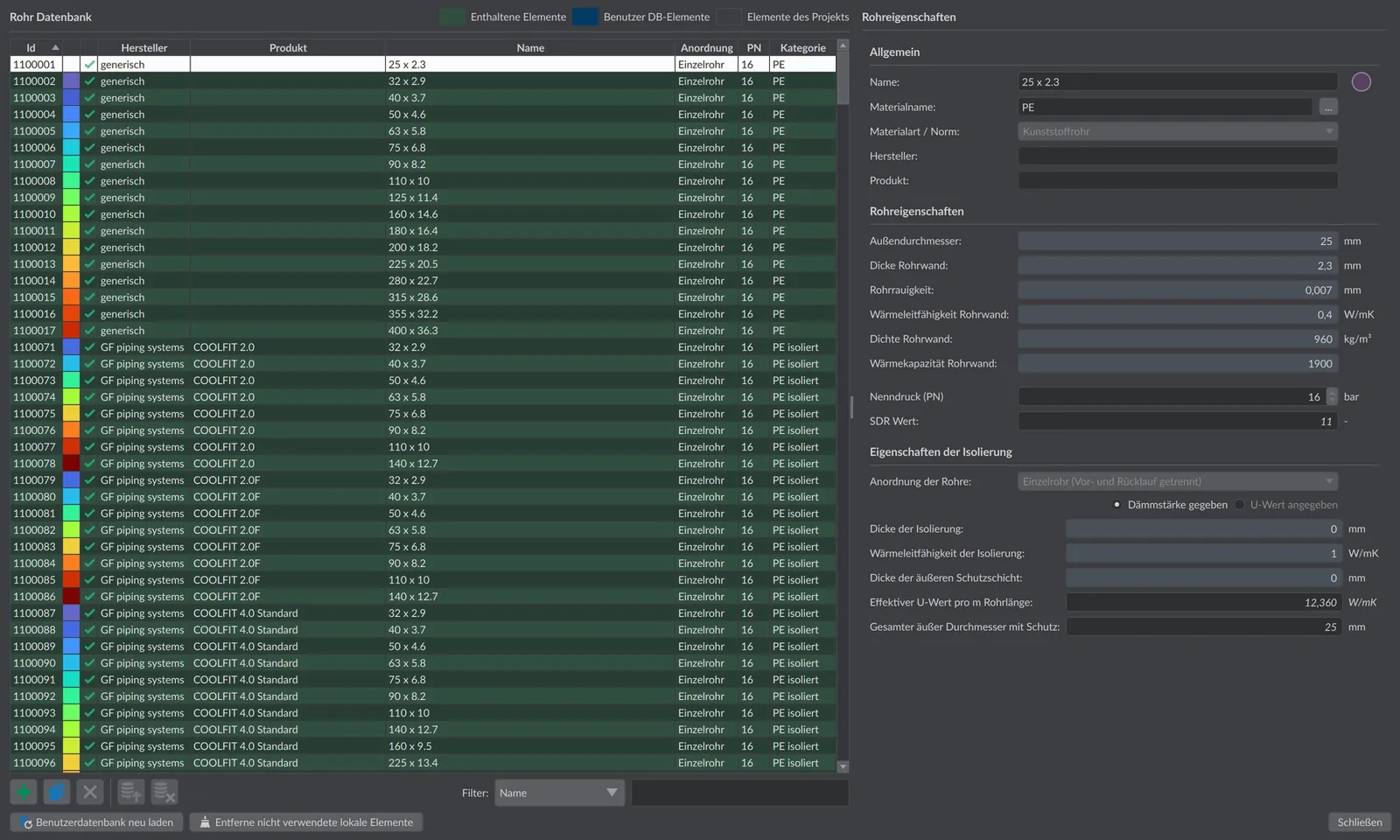
Above the table, a color legend shows which level an element belongs to:
| Level | Legend in the dialog | Storage location | Editable |
|---|---|---|---|
| Built-in database | Built-in elements | Installation directory | no (read-only) |
| User database | User DB elements | XML files in the user directory, independent of the project | yes |
| Project elements | Project elements | embedded in the project file (.vicus) | yes |
Built-in elements are highlighted in color; their input fields are locked in the editing area. To use a built-in element as a template, create an editable copy via the copy function.
Operating the Database Dialogs
All dialogs have the same toolbar below the table:
| Button | Function |
|---|---|
 Add Add | Creates a new element with default values. With a project open, a project element is created first; without a project, a user-DB element is created directly. |
 Copy Copy | Duplicates the selected element - built-in elements can also be used as a template this way. |
 Remove Remove | Deletes the selected user or project element. |
 Add to user DB Add to user DB | Moves a project element into the user database; dependent elements (e.g. referenced components) can be moved along on request. |
 Remove from user DB Remove from user DB | Moves the element out of the user database back into the local project. |
 Reload user database Reload user database | Reloads the user database from the directory and discards all changes made since program start. |
 Remove unused local elements Remove unused local elements | Deletes all project-local elements that are not referenced anywhere in the project. |
On the right of the toolbar you filter the list: select the column in the selection box (default: Name) and enter the search text in the Filter field.
Exchanging Elements Between Projects
A dedicated import/export format is not necessary: when saving, VICUS Districts embeds all database elements referenced in the project into the project file. If the project is opened on another computer, these elements appear there as Project elements and can be permanently adopted via Add to user DB. The project file is thereby at the same time the exchange format for database elements.
Good to know
You do not need to send a colleague separate database files: the .vicus project file is self-contained and includes all referenced pipes, fluids and plants. Anyone who opens the project can continue calculating right away – and permanently adopt the supplied elements into their own user database if needed.
Removing Duplicates
Menu Databases > Remove duplicates … searches all databases for duplicate entries. The dialog lists found pairs by database type and shows both elements side by side; fully identical pairs are highlighted in color, built-in elements are shown in bold. In the Differences area, a comparison shows the differing properties of both elements.
If a duplicate is removed while the project is open, this change cannot be undone - the undo history is cleared. VICUS Districts points this out before opening the dialog.
Network Databases at a Glance
The following databases are relevant for heat-network planning:
| Menu entry | Content | Handbook page |
|---|---|---|
| Pipes … | Pipe cross-sections, insulation, U-values | Pipe database |
| Media/Fluids … | Heat-transfer media | Fluids and more databases |
| Plants … | Energy plants and transfer stations (incl. components) | Plant concept |
| Heat exchange of pipes … | Boundary conditions for the heat exchange of the pipes with the environment | Heat-exchange types |
| Heating curves … | Supply-temperature curves for network and building | Fluids and more databases |
| Schedules … | Daily and annual schedules for setpoints | Fluids and more databases |
The fittings (pipe fittings) for the bill of materials do not have their own entry in the Databases menu; they are managed in the course of the bill of materials, see Fittings.
Notes
- In the program settings (section Directories), an alternative directory for the user database can be specified, e.g. a network drive for shared use within a team. When the software is closed, all user-DB elements are written to this directory. The button Reset to default values restores the built-in directory; both the change and the reset only take effect after a restart.
- New and copied elements initially remain project-local - deliberately adopt elements you want to use in several projects into the user database.