Project Files and Project Packages
The VICUS file workflow: new project, opening, saving and reloading, start screen with examples, the .vicpac project package and what a project contains.
Overview
A VICUS project is stored in a file with the extension .vicus. This page describes the file workflow (New, Open, Save, Reload, Close), the start screen, the .vicpac project package for sharing, and the structure of a project.
File menu
| Menu entry | Shortcut | Function |
|---|---|---|
| New… | Ctrl+N | Starts the project wizard and creates a new project |
| Open… | Ctrl+O | Opens a .vicus project file or a .vicpac project package |
| Reload project | – | Reads the project file again from disk |
| Recently used projects | – | Submenu with the most recently opened projects (up to 20 entries) |
| Save | Ctrl+S | Saves the project; for an as-yet-unnamed project this behaves like Save as |
| Save as… | Ctrl+Shift+S | Saves the project under a new name |
| Save as project package… | Ctrl+E | Creates a .vicpac package (see below) |
| Close | Ctrl+W | Closes the current project |
| Go to project directory… | F8 | Opens the project folder in the operating system’s file manager |
| Quit | Ctrl+Q | Quits VICUS |
If there are changes since the last save, VICUS asks before closing, creating a new project, opening or quitting whether the project should be saved (Save / Discard / Cancel). If a simulation is currently running, you are first asked whether it should be stopped.
Reload project discards, after confirmation, all unsaved changes and reads the last saved version anew – useful for returning to the last saved state or adopting a file that was changed externally.
Start screen
If no project is open, VICUS shows the start screen. At the top are the buttons Create project… and Open project…. Below them you can switch between three categories:
- Recently used projects – the most recently opened projects with a preview image, file path and description (from the project comment). Entries that are no longer reachable can be removed directly from the list.
- Building examples and Network examples – bundled example projects that are opened with a click. Which category is visible depends on the active workspace (see User Interface and Navigation).
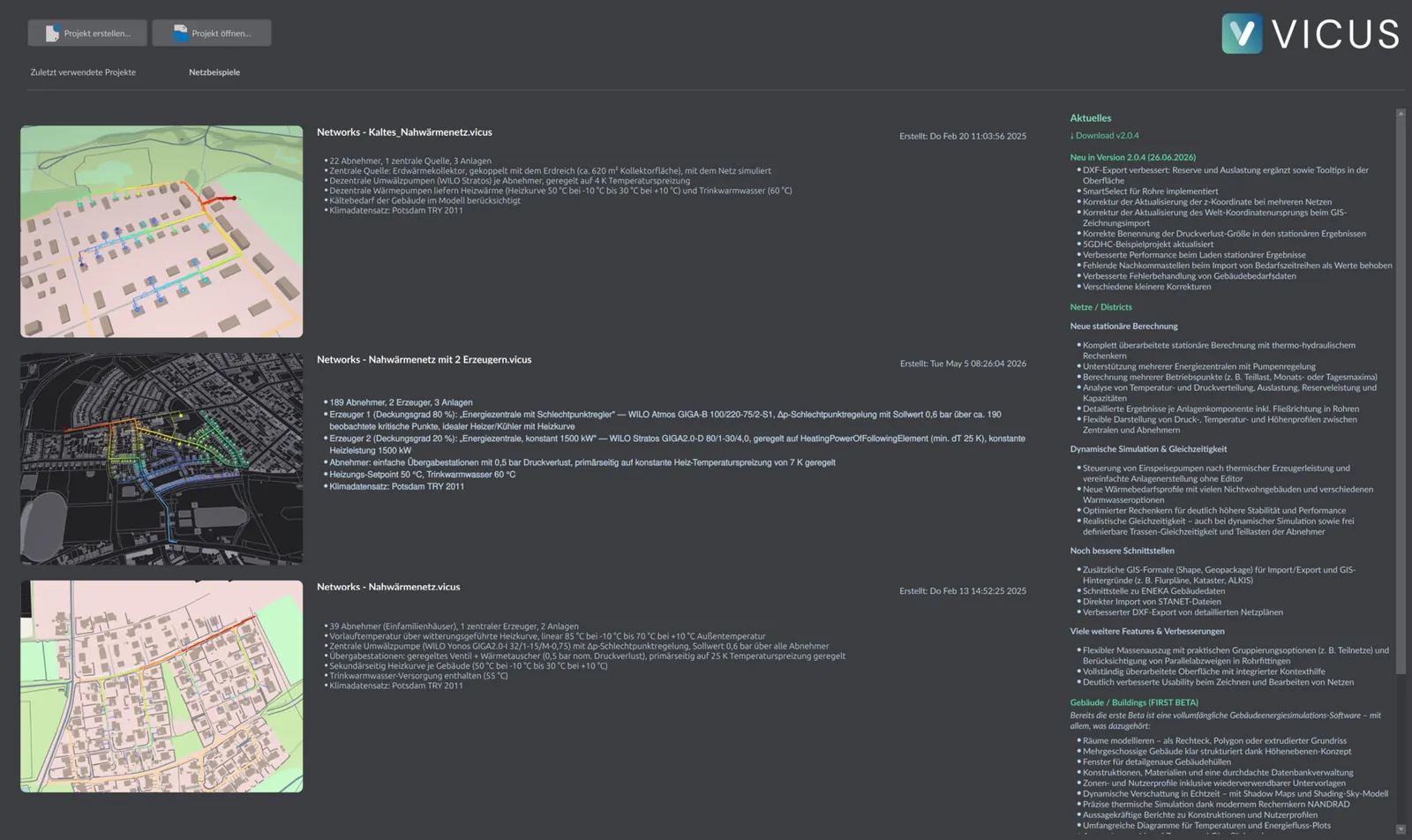
Project package (.vicpac)
A project package bundles the project with all externally referenced files into a ZIP archive with the extension .vicpac – ideal for handing over or archiving a project in full. Besides the project file, it contains, among others, drawings, the climate file, the customer logo, shading and time-series files as well as OSM drawings; the file references are switched to the package directory in the process.
Practical tip
Do not hand over a project as a single .vicus file if external files such as climate data, drawings or time series are attached to it – these remain only as file references and would otherwise be missing at the recipient’s end. Instead use Save as project package… (Ctrl+E): the .vicpac package bundles everything needed and is thus ideal for sharing and archiving.
- Creating: Menu File > Save as project package… (Ctrl+E). VICUS first saves the project and then writes the
.vicpacpackage. - Opening: A
.vicpacis selected like a project via File > Open…. VICUS asks for a target directory, unpacks the package there and opens the contained.vicusfile.
What a project consists of
- The
.vicusfile is an XML document. When saving, VICUS embeds all database elements referenced in the project (pipes, fluids, plants, heating curves, schedules, etc.) directly into the file – with respect to the database, the project is thus self-contained, see Database concept. - External files – drawing (
.vicdraw), OSM drawing (.vicosm), climate and shading files, images, time series (TSV), FMUs and the customer logo – remain by contrast as file references and are only copied along into a project package. - With automatic saving enabled, VICUS creates backups with the extension
.vicus~next to the project file. - During a simulation, the solver writes its result and log files into a directory next to the project file, see Evaluation and export.