Introduction to VICUS Districts
Getting started with VICUS Districts – overview of the user interface and core functionality
Getting started ▶ 0:23
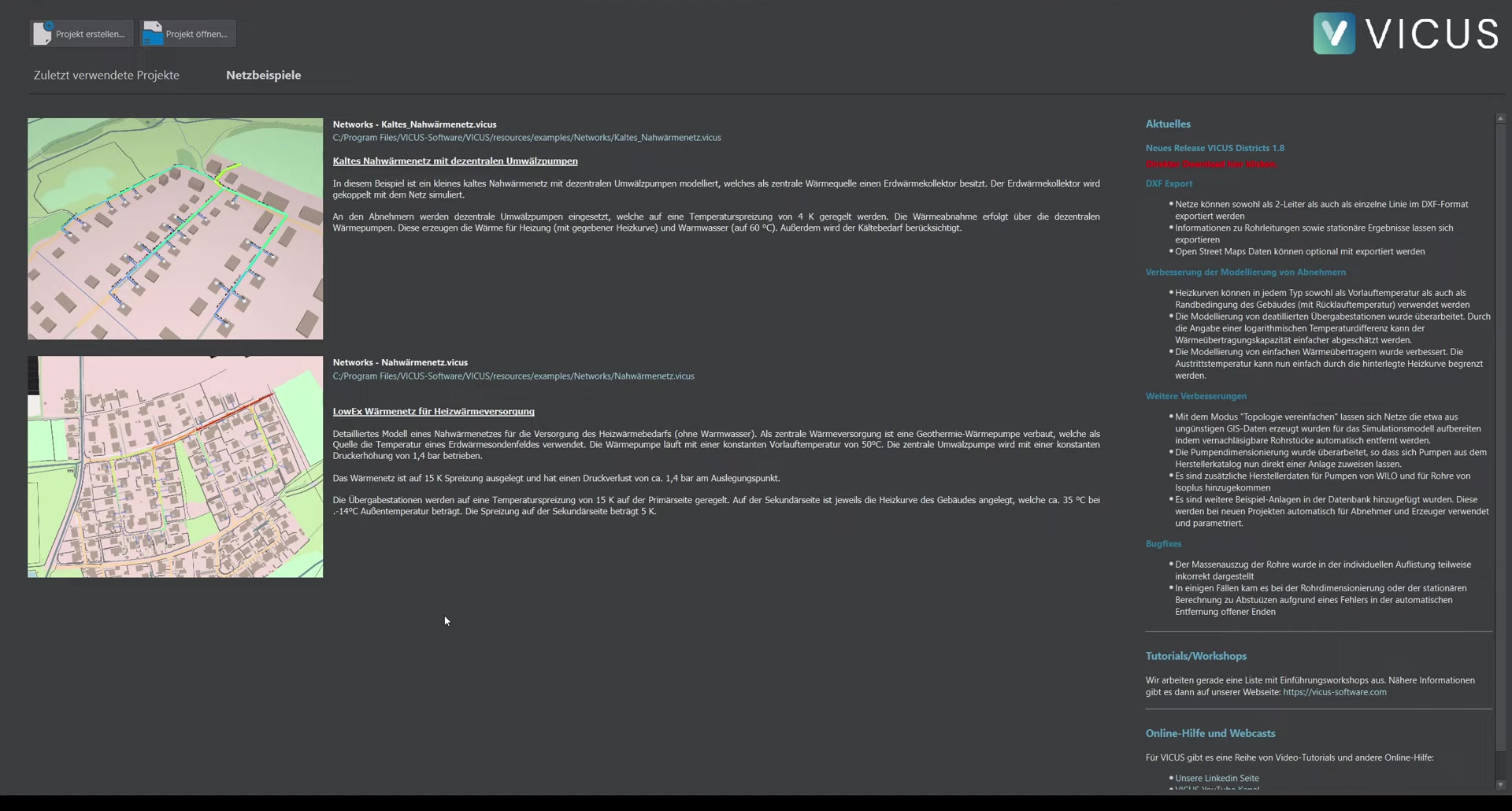
When you first launch VICUS Districts, it is a good idea to explore the integrated examples. Switch to the Network examples tab and open an example project. This lets you quickly see how a network is built up, how a steady-state calculation is performed, and how simulation results are evaluated.
User interface ▶ 0:50
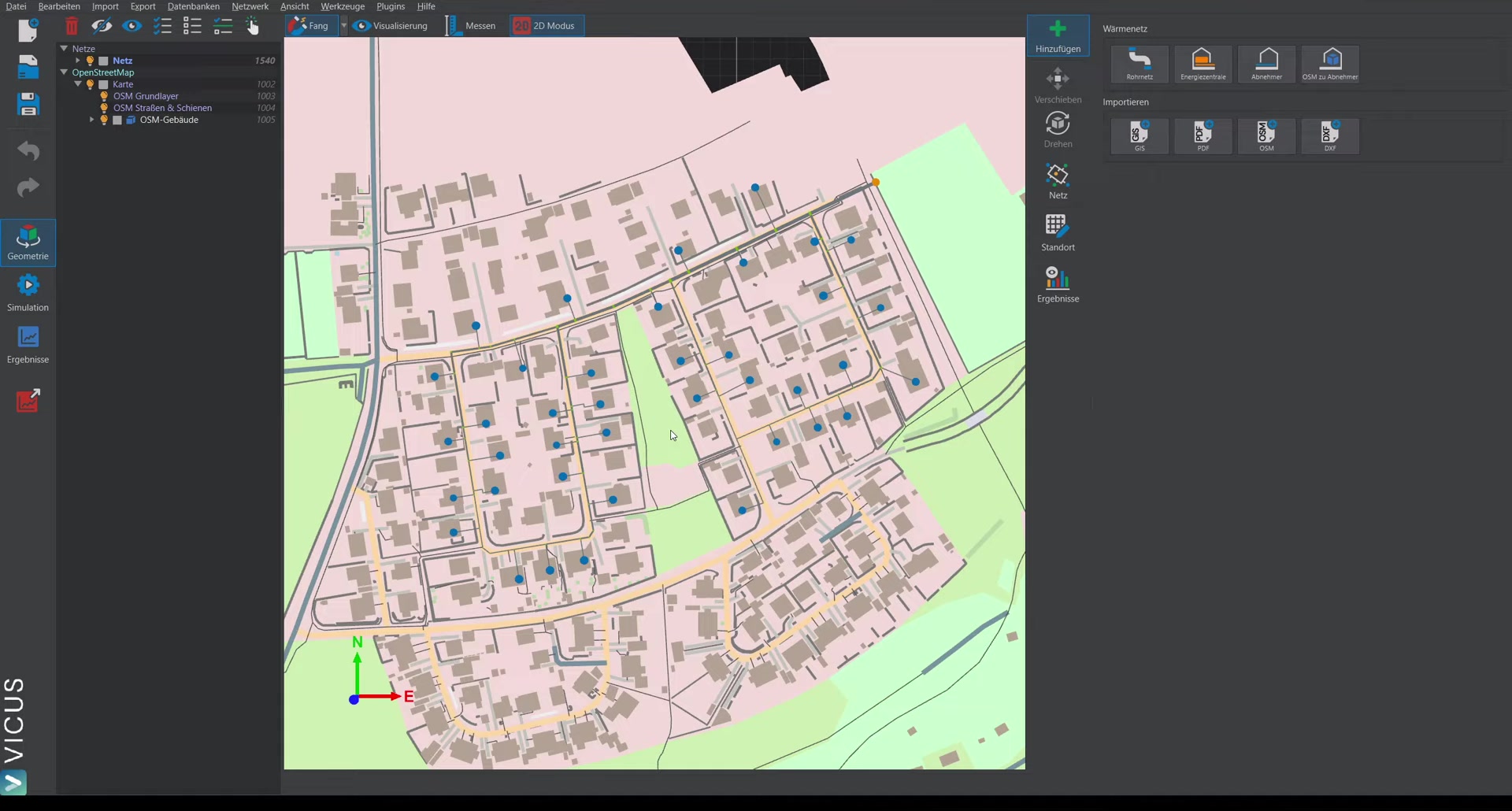
Navigation tree (left side)
The navigation tree on the left side manages all project elements:
- Select elements: Click an element in the tree to highlight it in the map view. Conversely, clicking a network element on the map activates the corresponding entry in the tree.
- Control visibility: The light-bulb icons let you show or hide layers or individual elements.
- Rename: Double-click an element in the tree to rename it.
Interaction and controls
- Additive selection: When selecting multiple elements, they are added to the current selection.
- Deselect: Press
ESCto clear the entire selection. - 2D/3D view: Use the button at the top to switch between 2D and 3D mode. In 3D mode, you navigate with the left mouse button.
- Navigate faster: Hold down the space bar to increase the movement speed — particularly useful with large models.
Adding elements (right side)
On the right side, you can create new elements:
- Draw the network and add pipe elements
- Position consumers and energy plants
- Import data (GIS, PDF, OpenStreetMap, DXF)
Network planning and configuration ▶ 3:16
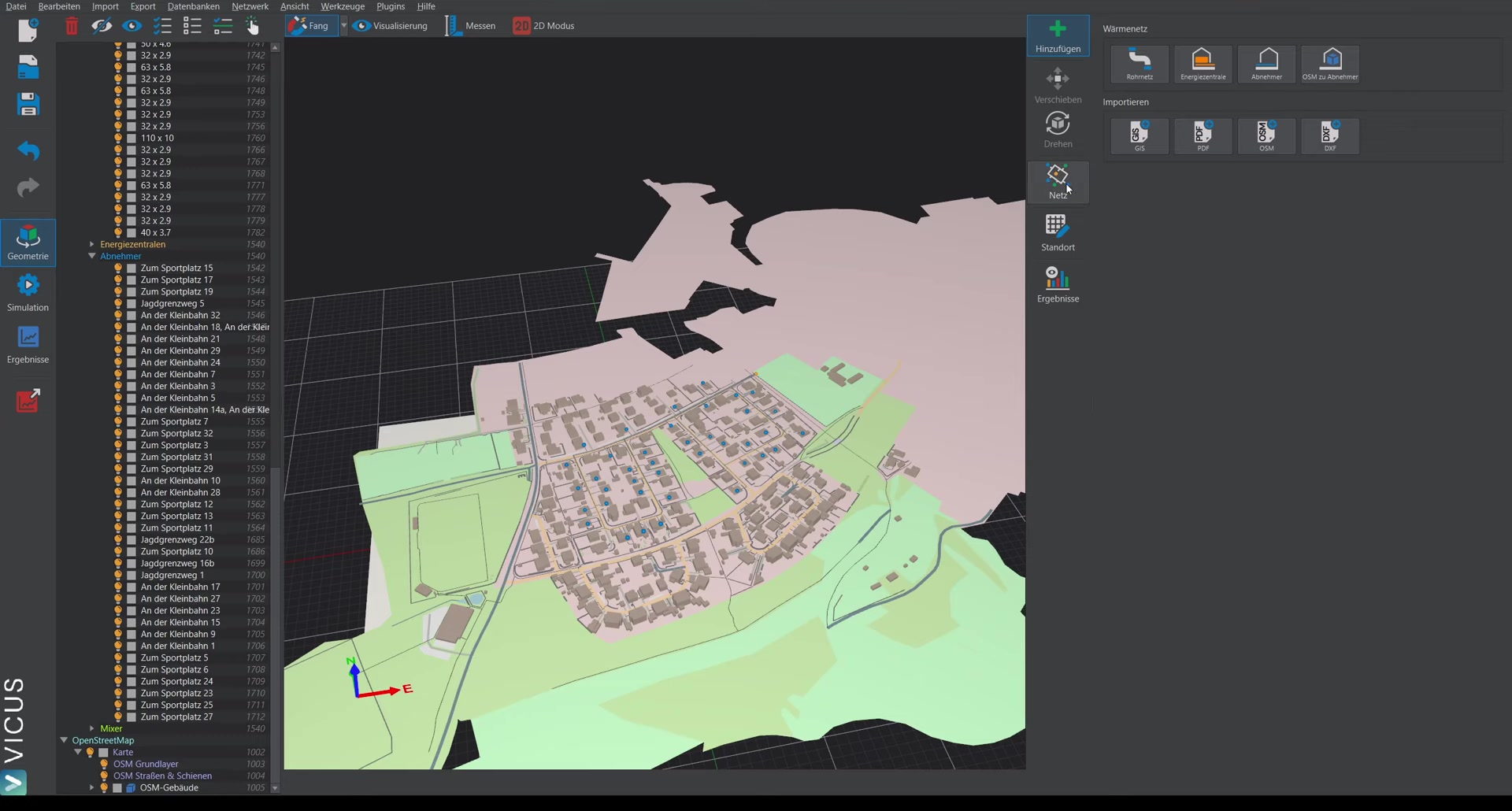
When you activate the Network element on the left side, several configuration tabs become available on the right side:
General tab
Here you define the fluid and use topology tools:
- Automatically connect consumers
- Automatically set elevations
- Simplify network topology
Building demand tab
Visualization of the connection loads in the network. Depending on the selected mode, the heating energy demand and additional properties can also be displayed.
Pipe sizing tab
Shows the assigned pipe dimensions directly in the scene. Selecting a pipe gives you detailed information on pipe category, pipe type, and length. Individual network sections can be locked for pipe sizing.
Visualization options: Use the visualization button at the top to adjust the display:
- Scale consumer nodes and pipes larger or smaller
- Show or hide labels (for very large models, displaying text can slow down rendering)
- Change font size and text color
Systems tab
Definition of the system components:
- House transfer stations (simple or detailed)
- Energy plants (multiple plants within the network are also possible)
Ground conditions tab
Configuration of the ground boundary conditions for the network, such as soil temperatures and boundary conditions for heat-loss calculation.
Calculation and simulation ▶ 5:56
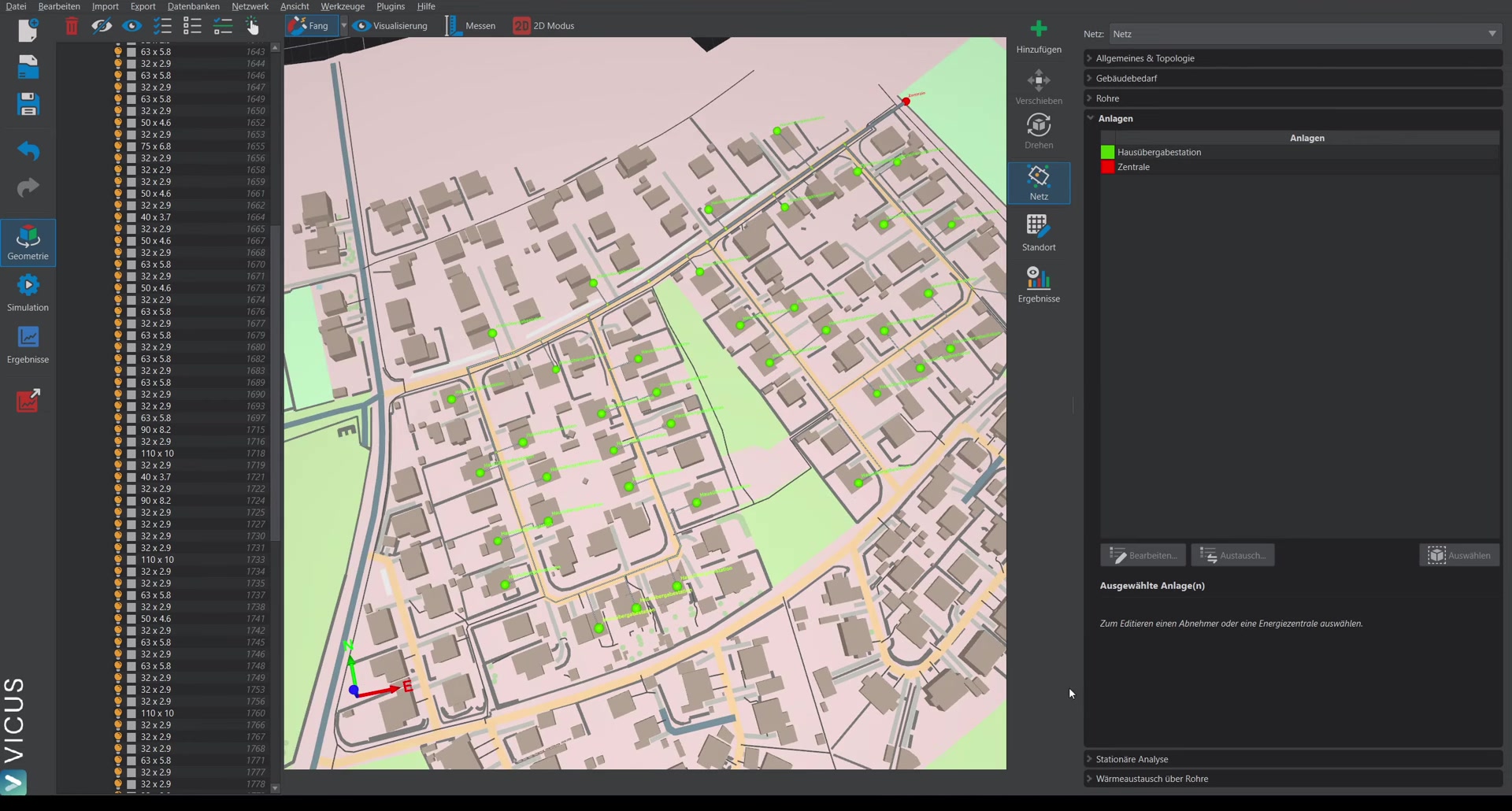
Steady-state calculation
The steady-state calculation provides a snapshot of network performance:
- Display of the pressure curve
- Identification of the worst point (hydraulically least favorable consumer)
- Overview of all consumers with pressure loss and volume flow
- Detailed branch listing with all fittings and the respective pressure losses
- Pump sizing: Automatic suggestion of suitable pumps from the integrated database
Dynamic simulation
Under the Simulation section you will find:
- Climate data: Import weather data directly from the German Weather Service (DWD) or load your own climate data
- Simulation settings: Adjust the parameters for the dynamic simulation
- Hourly results: After the simulation, you obtain hourly resolved evaluations of heating power, COP, heat losses of the pipe network, and additional key figures
Reports and outputs ▶ 7:32
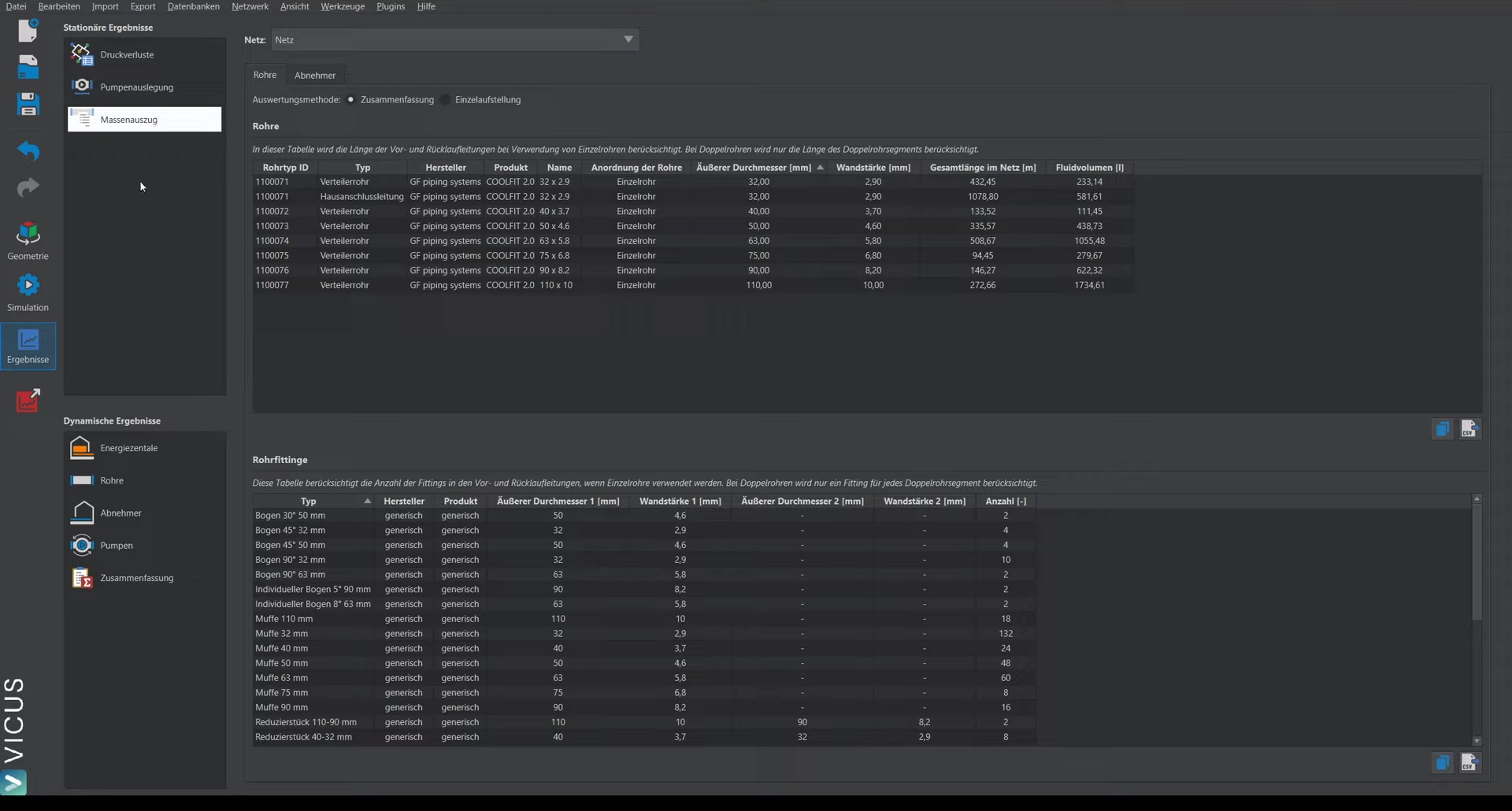
- Bill of materials: Complete listing of all pipes as well as all pipe fittings (bends, tees, reducers, etc.)
- Results summary: Overview of the most important simulation key figures