Import DXF
Import, position and adjust DXF drawings in VICUS Districts
Overview ▶ 0:09
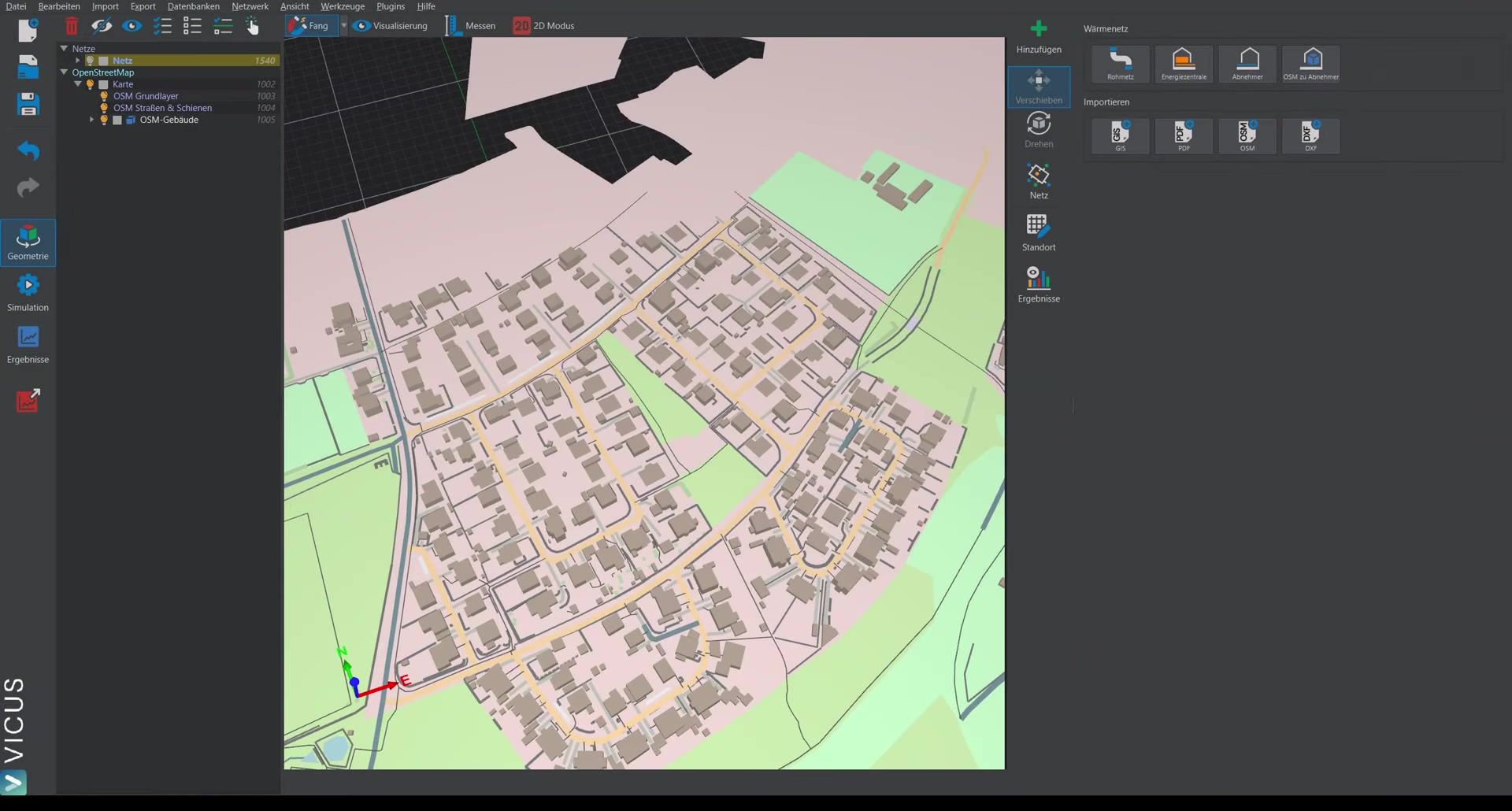
VICUS Districts supports importing DXF drawings as a background plan. The imported drawing can then be edited, moved, and placed at the correct position.
Importing a DXF file ▶ 0:23
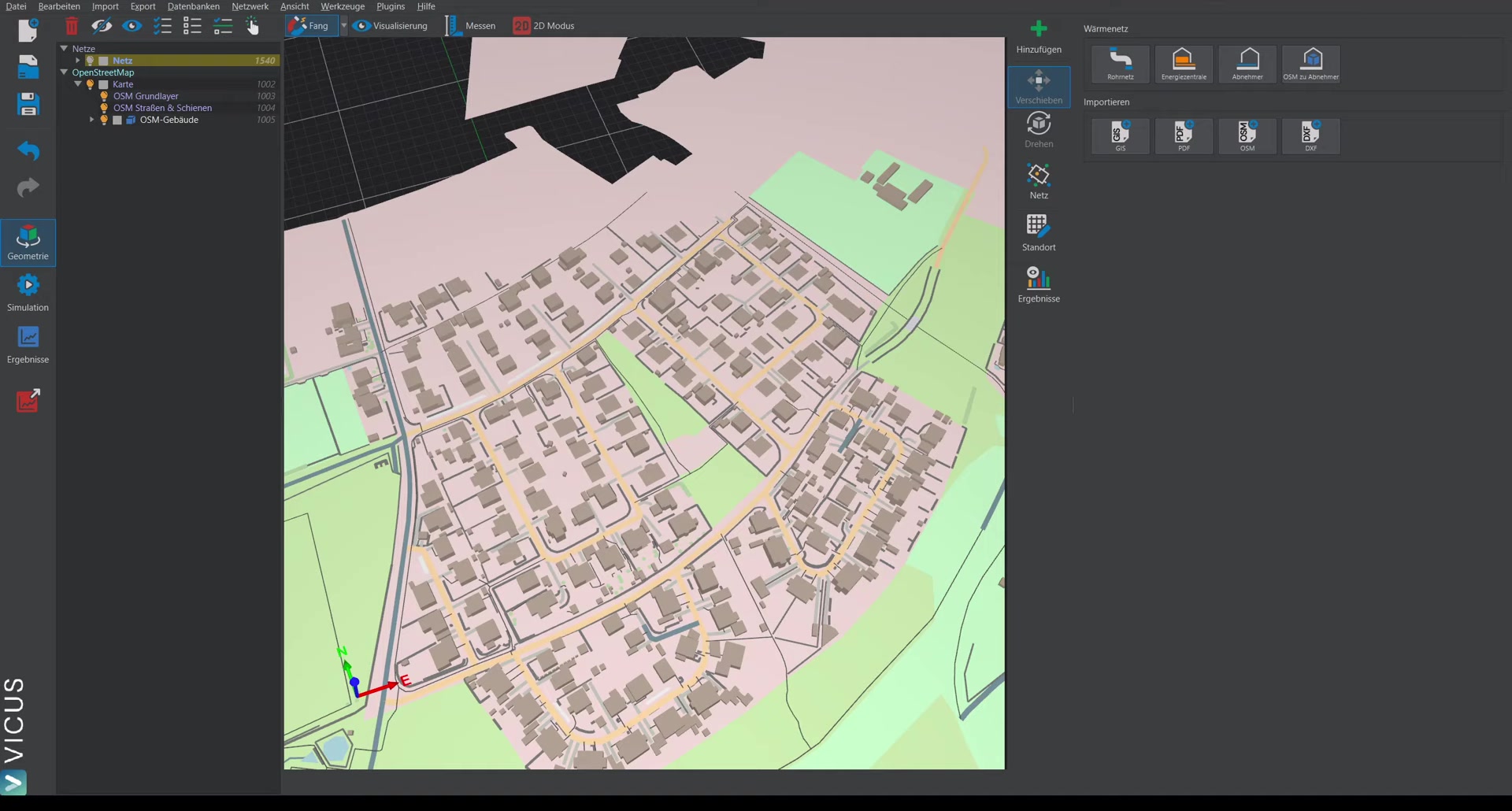
- Navigate to Import > DXF file.
- Select the desired DXF file.
- Set the unit of measurement.
Note on the unit of measurement
Leave the setting on Auto initially. The software will try to detect the correct unit automatically. Typically, the unit is not stored in DXF files and therefore has to be auto-detected.
If the drawing appears far too small or too large after the import, try setting a different unit.
Editing the drawing ▶ 1:01
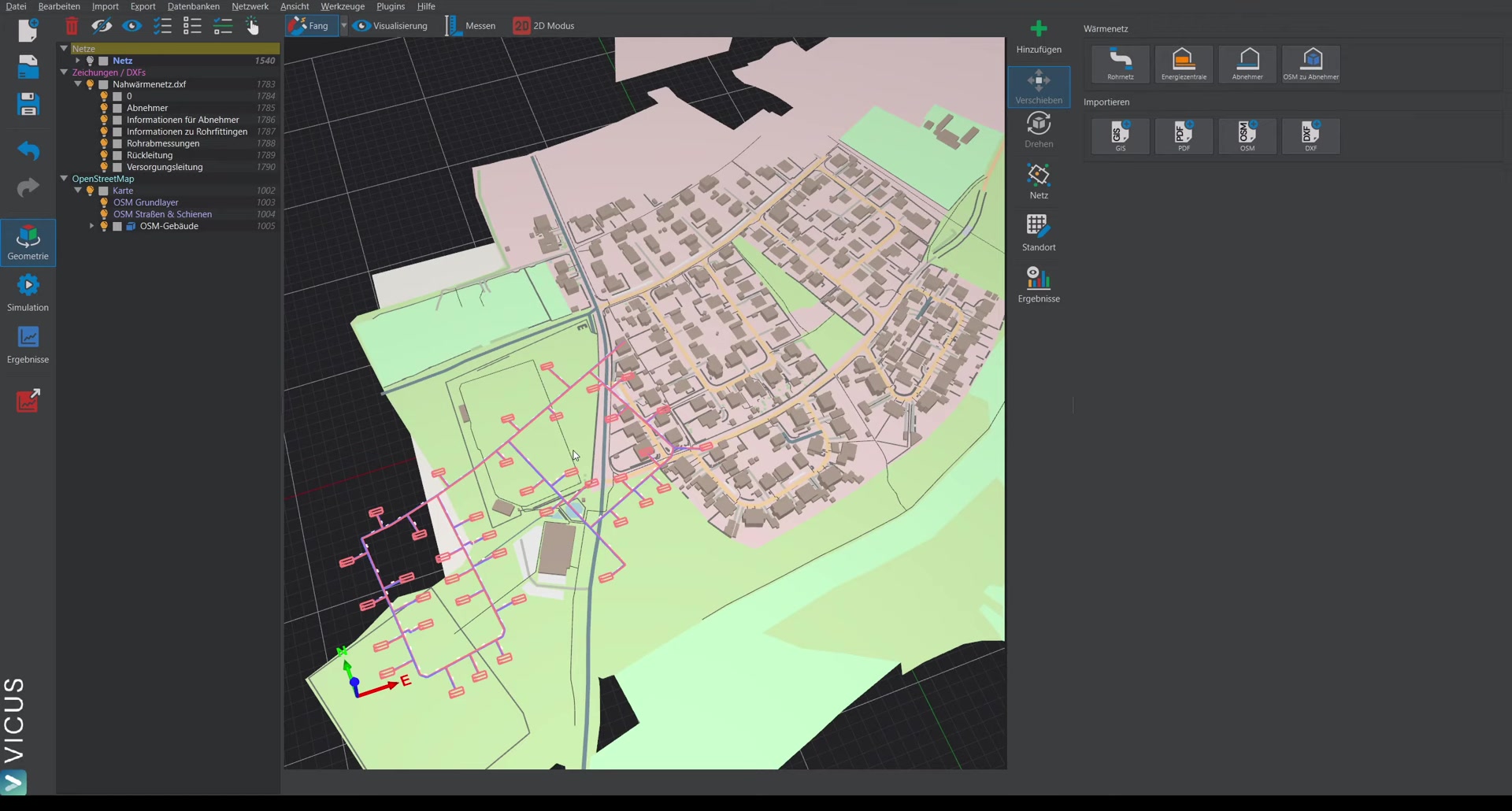
After the import, the following options are available:
- Visibility: Show or hide the entire drawing.
- Layer control: Individually show or hide layers of the DXF drawing.
- Adjust display: Double-click the DXF drawing in the navigation tree to change text size and line width.
Moving the drawing ▶ 1:27
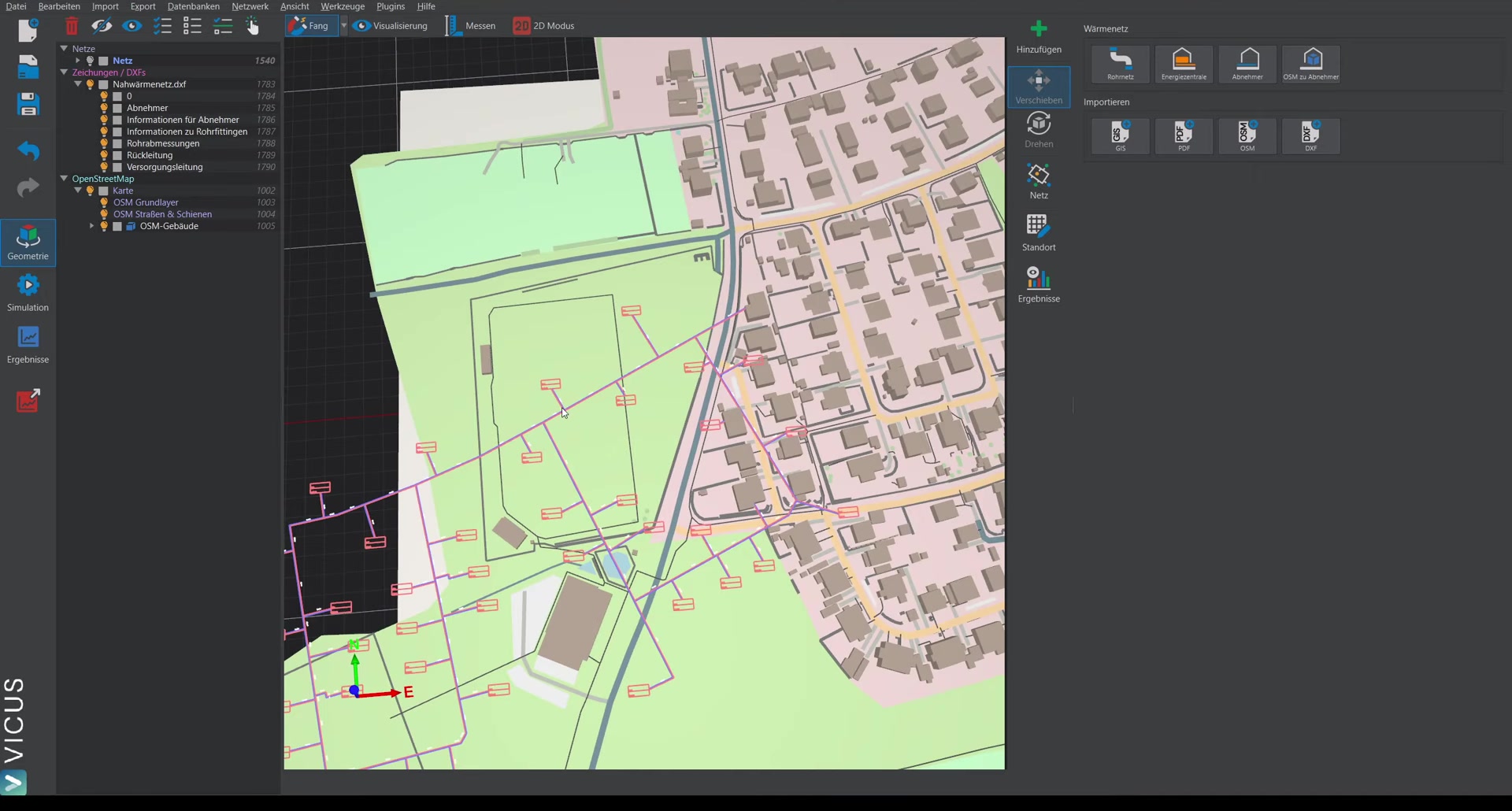
- Select the DXF drawing (either in the view or in the navigation tree).
- Switch to move mode.
- Drag the yellow sphere to the desired position.
Setting the move anchor
With very large DXF drawings, the move anchor (yellow sphere with coordinate system) can be hard to find. In that case:
- Select the DXF drawing and activate move mode.
- Place the local coordinate system at a suitable spot on the drawing by positioning the anchor at the desired location.
- From that location, you can then move the drawing precisely.
Once positioned, deselect the drawing with ESC.