Steady-state calculation & pump sizing
District heating network, part 2: perform the steady-state calculation and size the pump
Overview ▶ 0:10
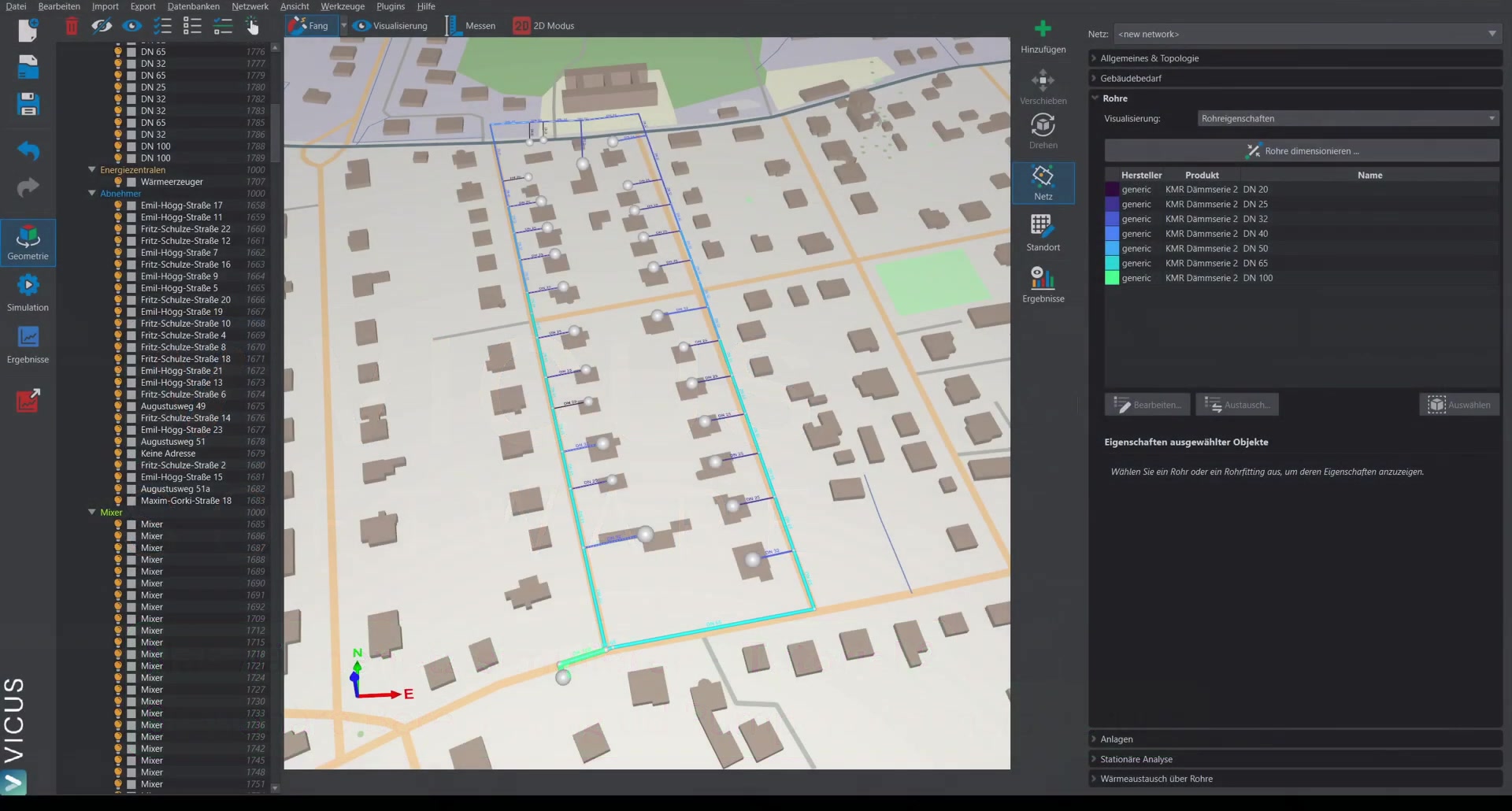
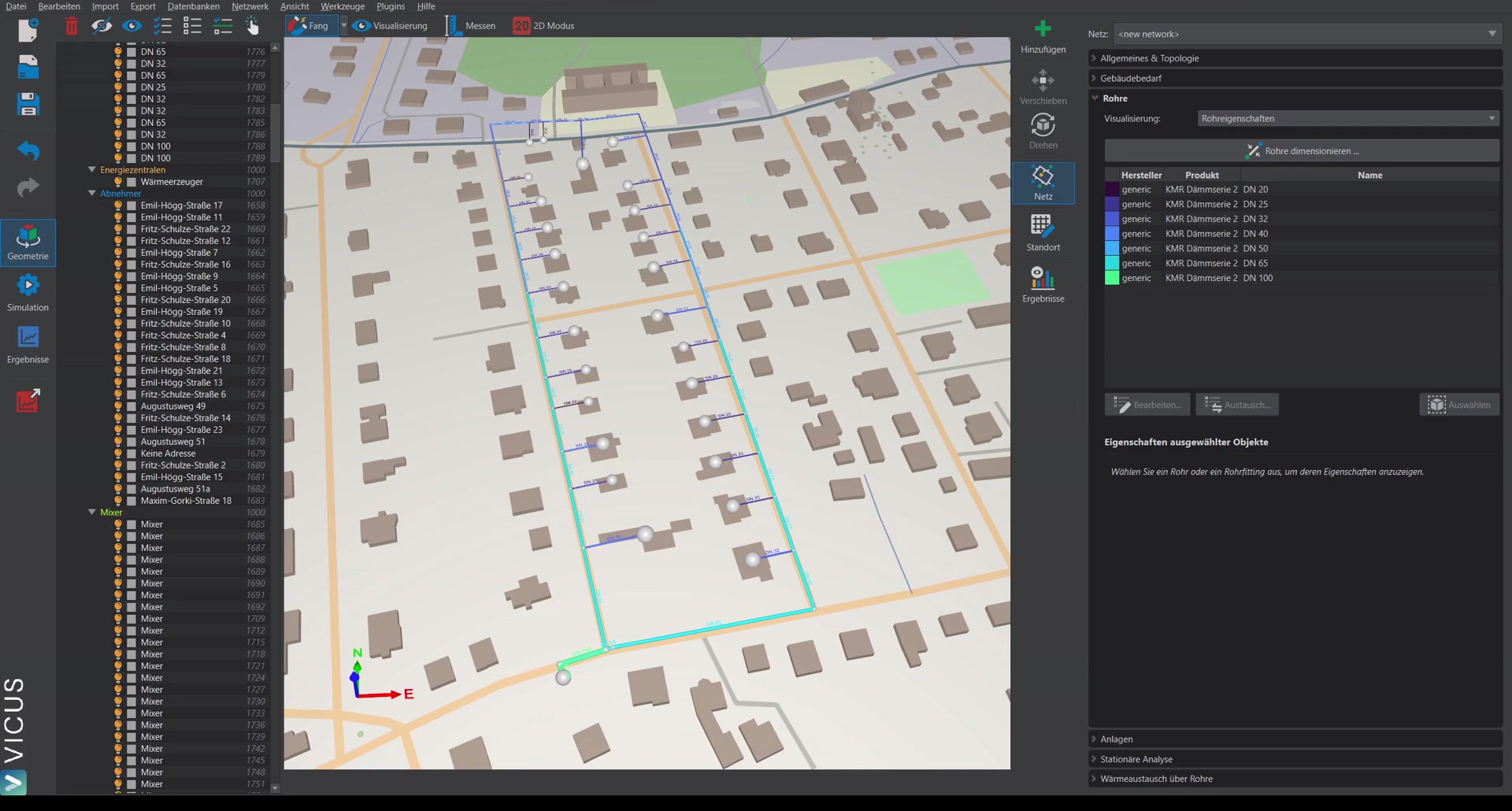
This tutorial demonstrates how to edit the system configuration, perform a steady-state calculation, and size the pump. The starting point is the network created in the first tutorial.
Checking the system configuration ▶ 0:25
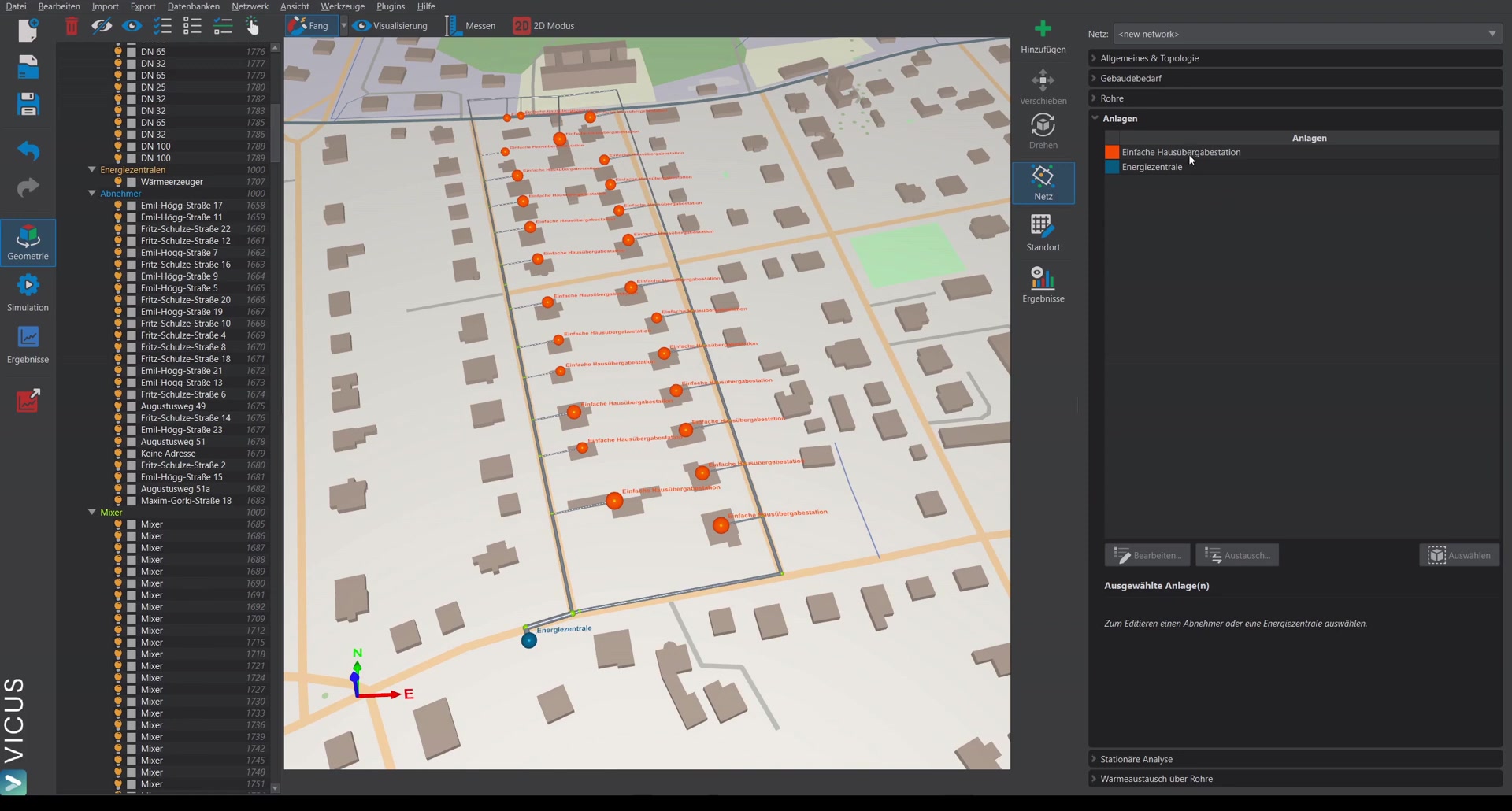
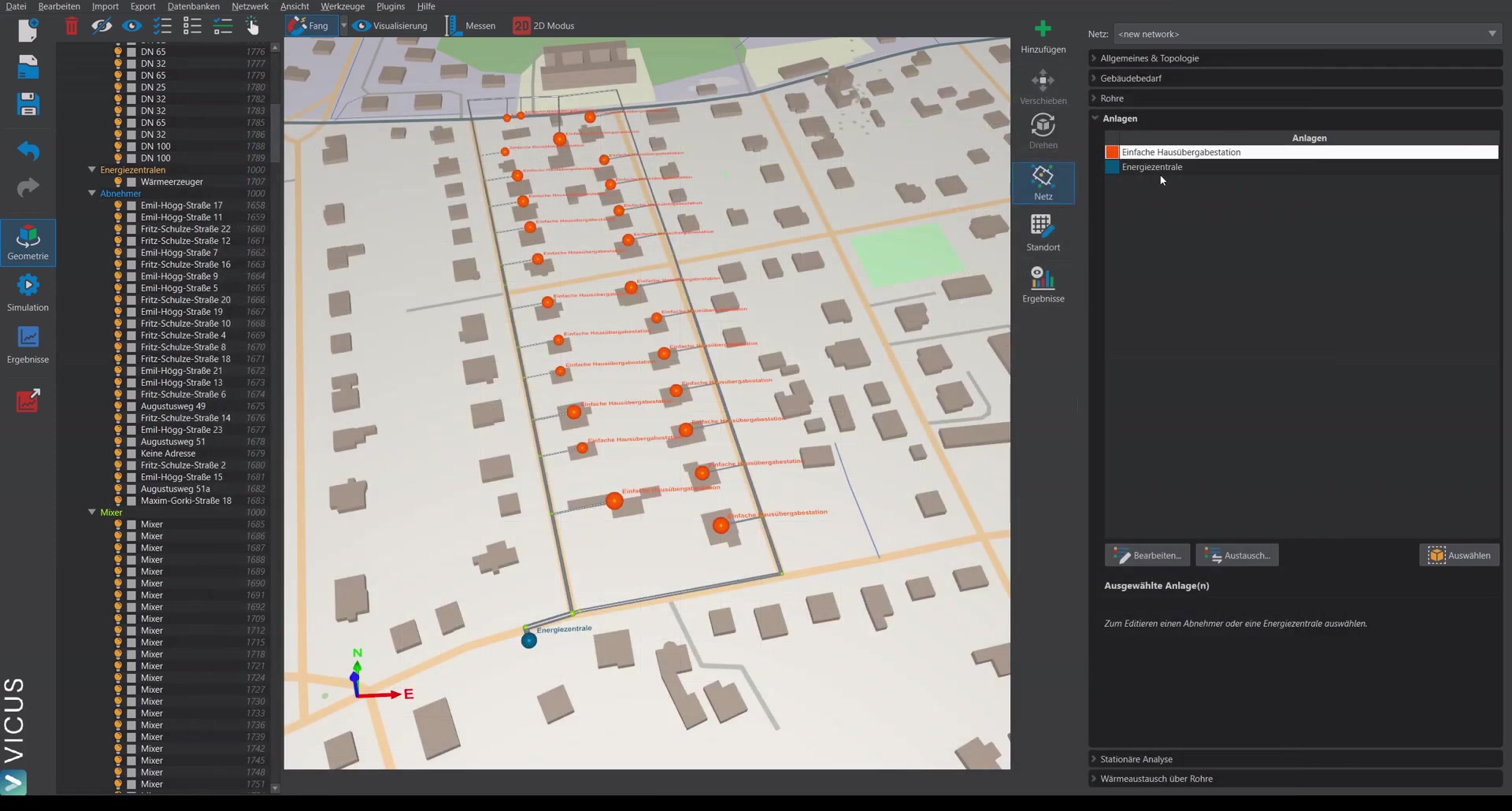
In the Systems view, it is shown which systems are assigned at which point.
House transfer station ▶ 0:38
Double-clicking the entry opens the system editor. The simple house transfer station contains:
- A heat exchanger with a pressure loss of 0.5 bar
- A valve that regulates a temperature difference of 20 Kelvin across the heat exchanger
Energy plant ▶ 1:07
The energy plant contains:
- A circulation pump with an initially constant pressure increase of 2 bar (it will be sized afterwards)
- A simple heat generator with a constant supply temperature of 80 °C
Performing the steady-state calculation ▶ 1:37
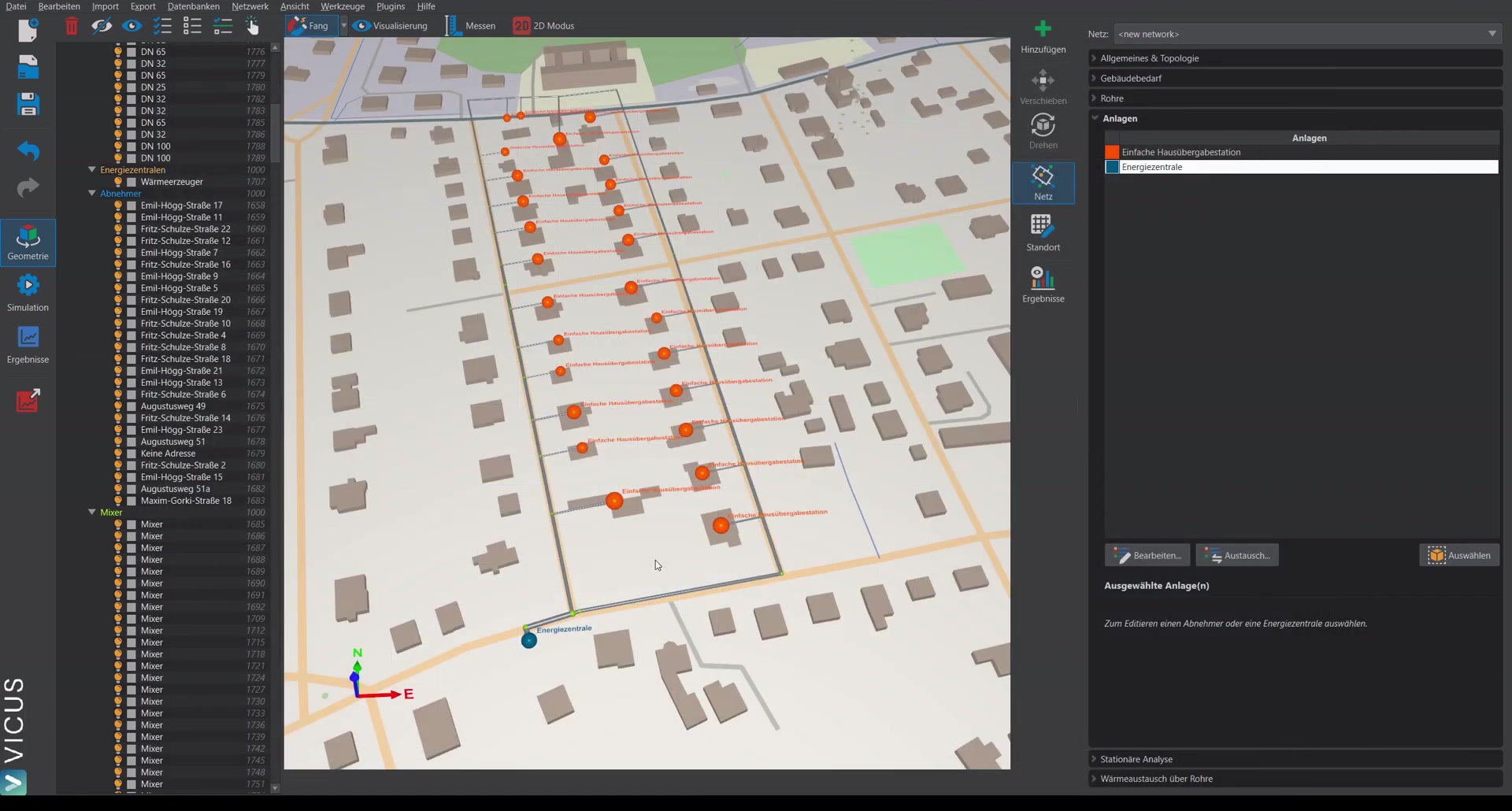
- Switch to the Steady-state analysis tab.
- Open the dialog — here you can configure supply temperature, temperature difference, static pressure (pressure in the pressure maintenance system), and the simultaneity.
- Create the steady-state calculation.
Results of the steady-state calculation ▶ 2:12
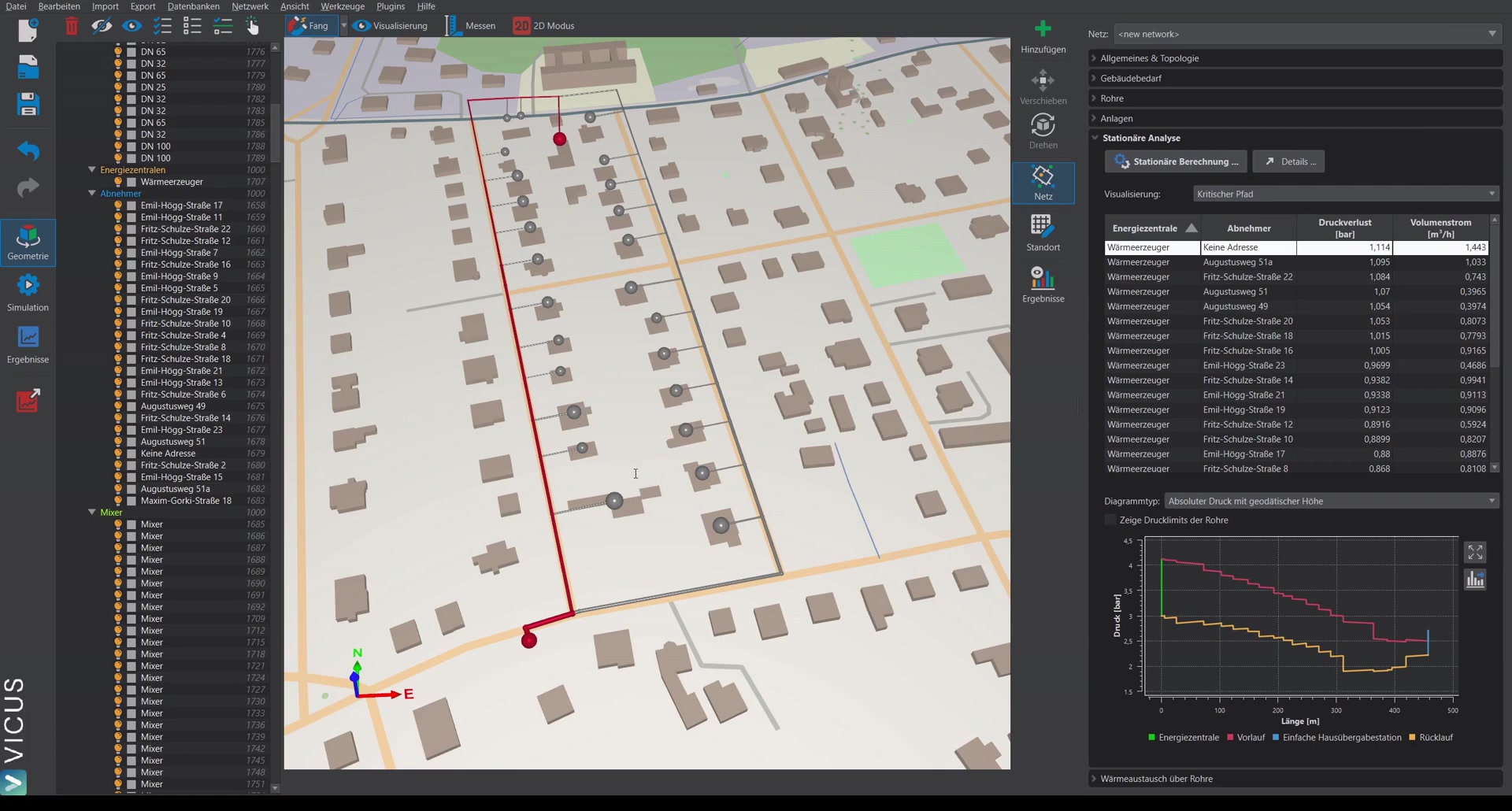
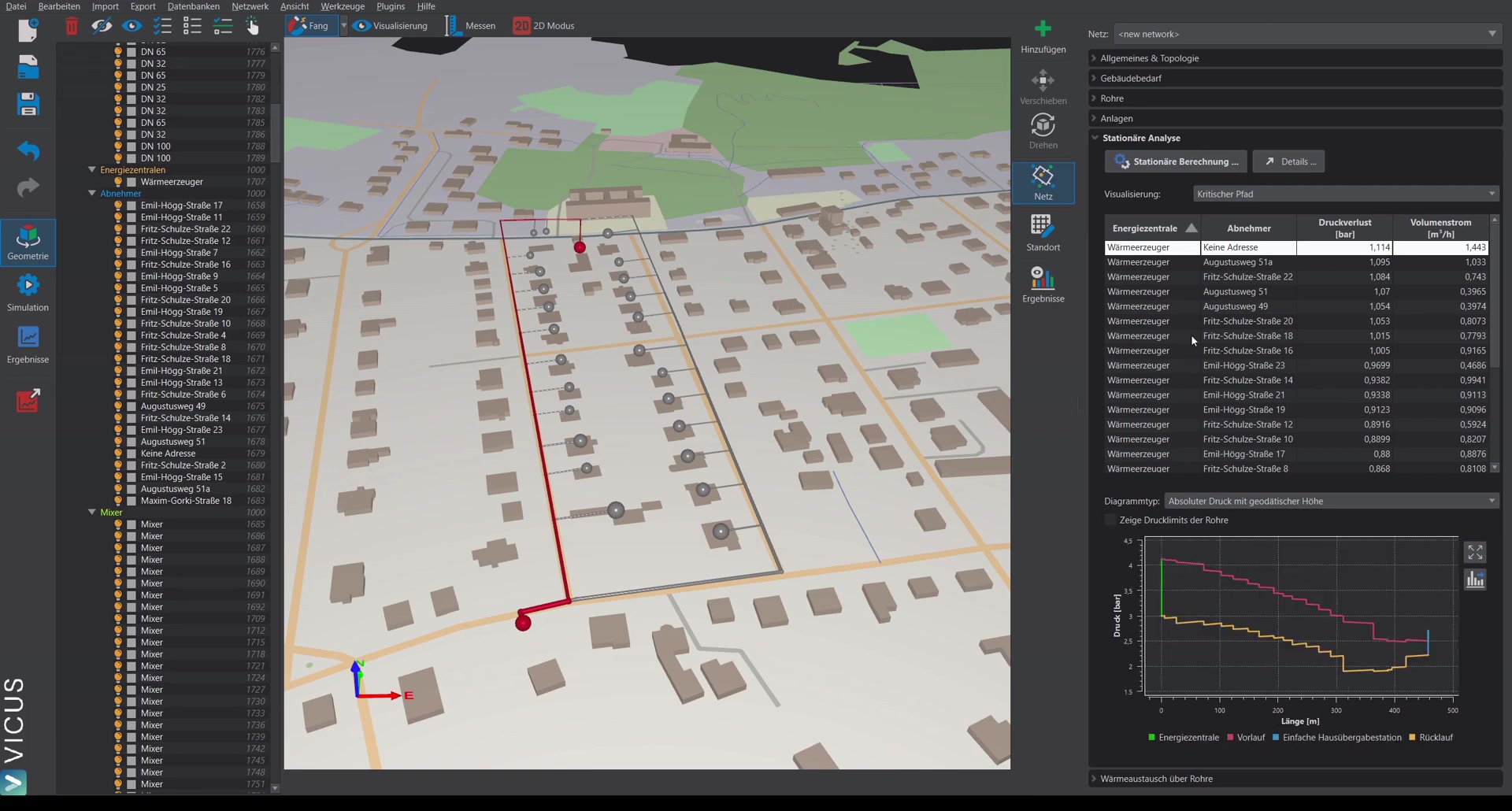
The results show:
- The pressure loss at the worst point and the critical path displayed in color
- By selecting different entries in the table, the pressure losses at each consumer can be displayed
- The pressure profile along the branch, optionally with or without geodetic height
- The pressure limits of the pipes (e.g. PN16 with 16 bar pressure rating)
Additional display options ▶ 3:15
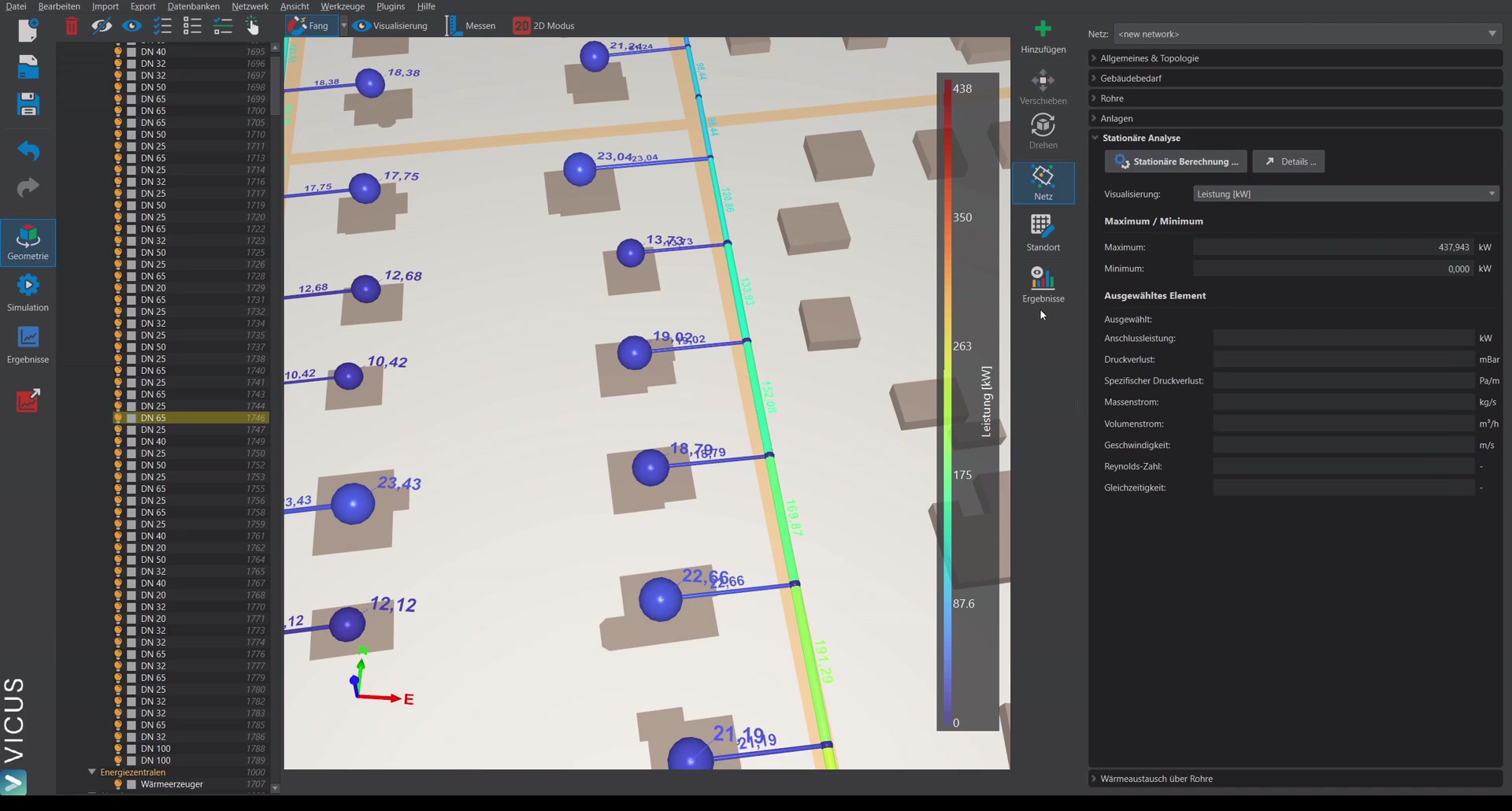
Additional quantities can be displayed in color in the network: specific pressure loss, mass flow, volume flow, and further results. Selecting an element shows additional results on the right side.
Detail results ▶ 3:41
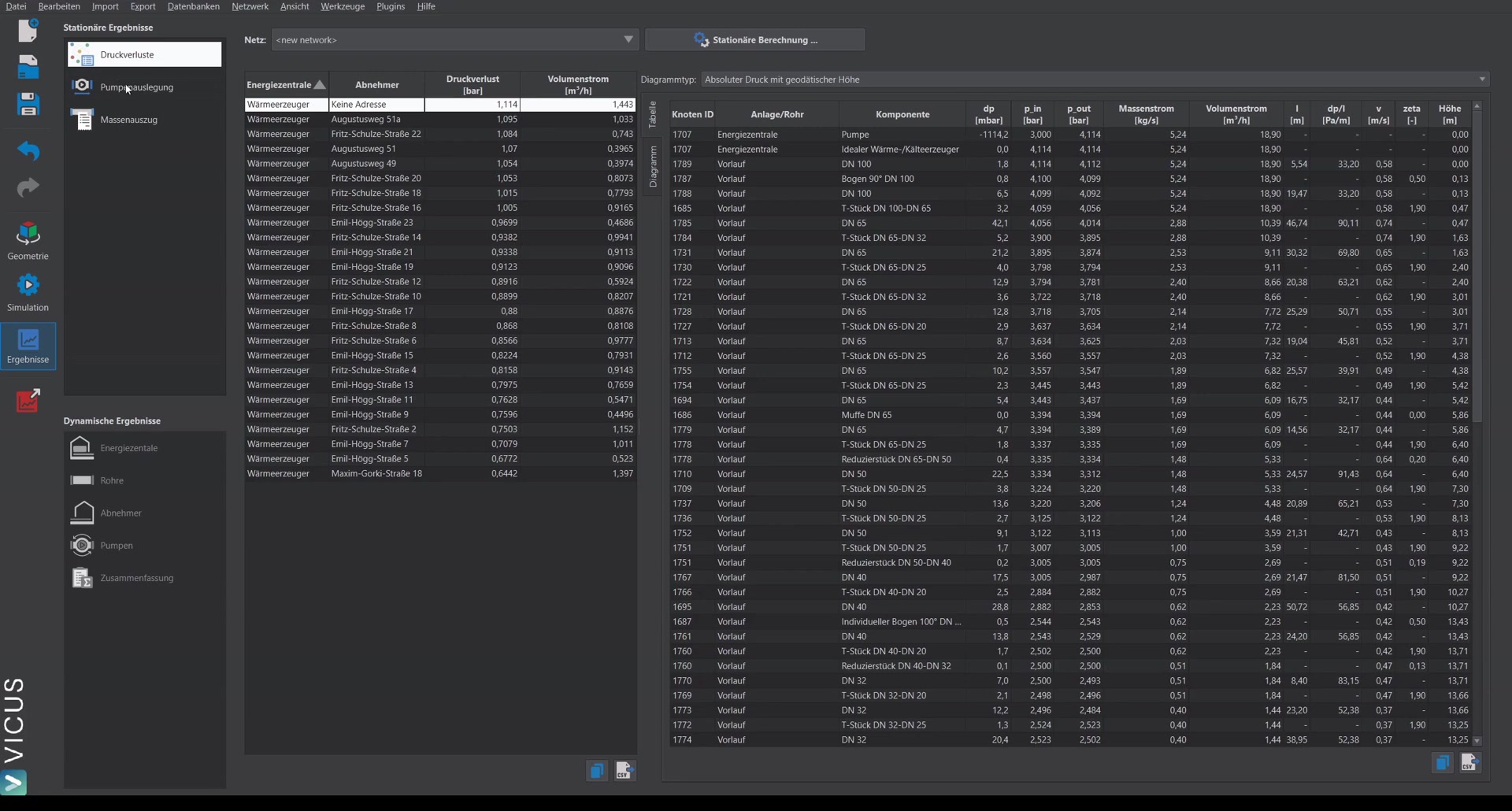
Under Details you find a tabular overview of every component in the network — i.e. every component in the systems and in the pipe network, including pipe fittings, with the respective pressure loss, mass flow, volume flow, and absolute pressure.
Sizing the pump ▶ 4:10
- Switch to Pump sizing.
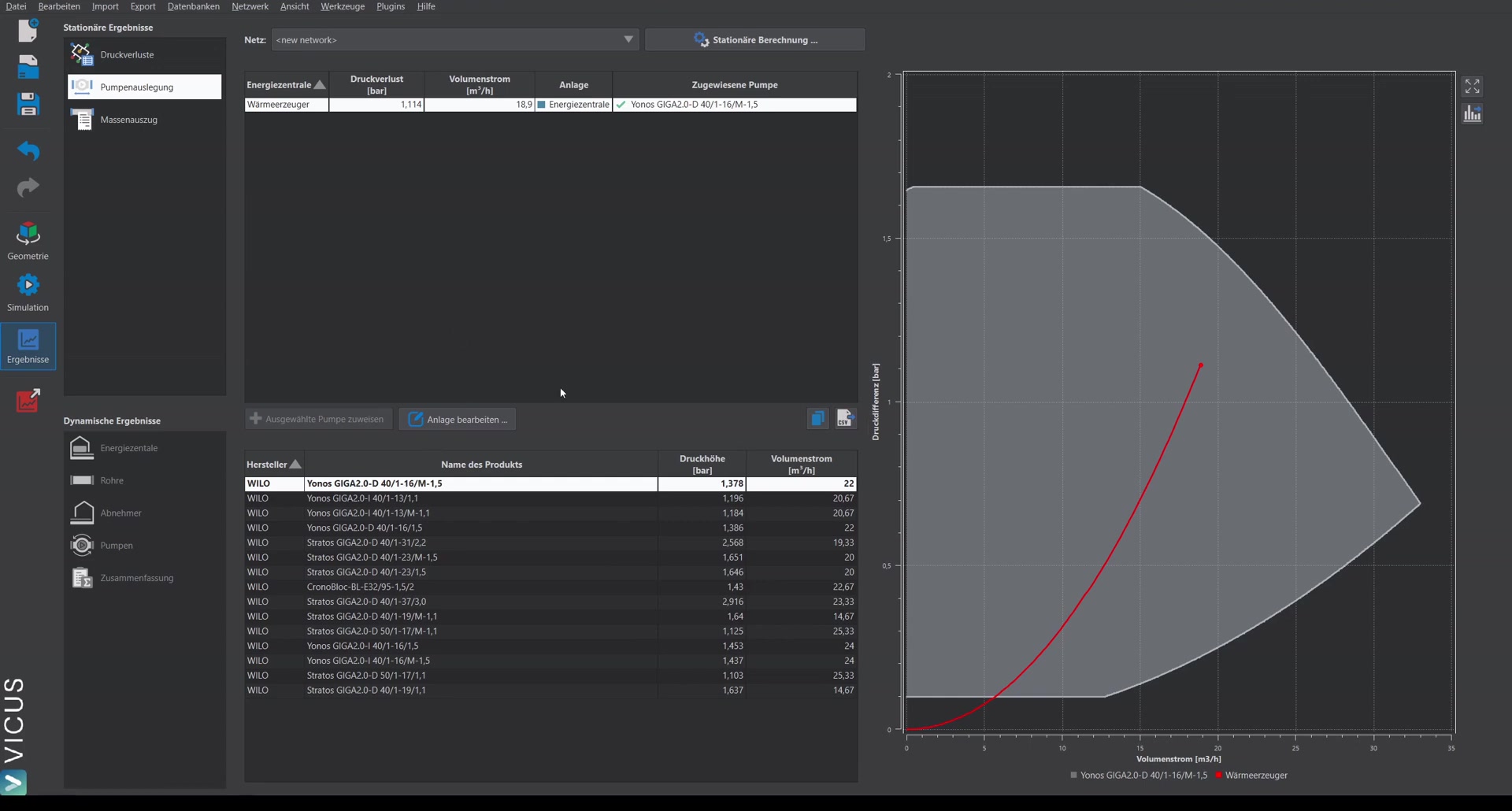
- In the upper table the energy plant is displayed. Below it, suitable pumps are suggested.
- Select the desired pump and click Assign pump.
- The pump from the database is automatically stored in the system — the correct curves are assigned directly.
Verifying the pump in the system ▶ 4:40
Via Edit system and double-clicking the energy plant, you can verify that the correct pump curves are stored.