Import PDF
Import PDF plans in VICUS Districts and use them as a background
Overview ▶ 0:09
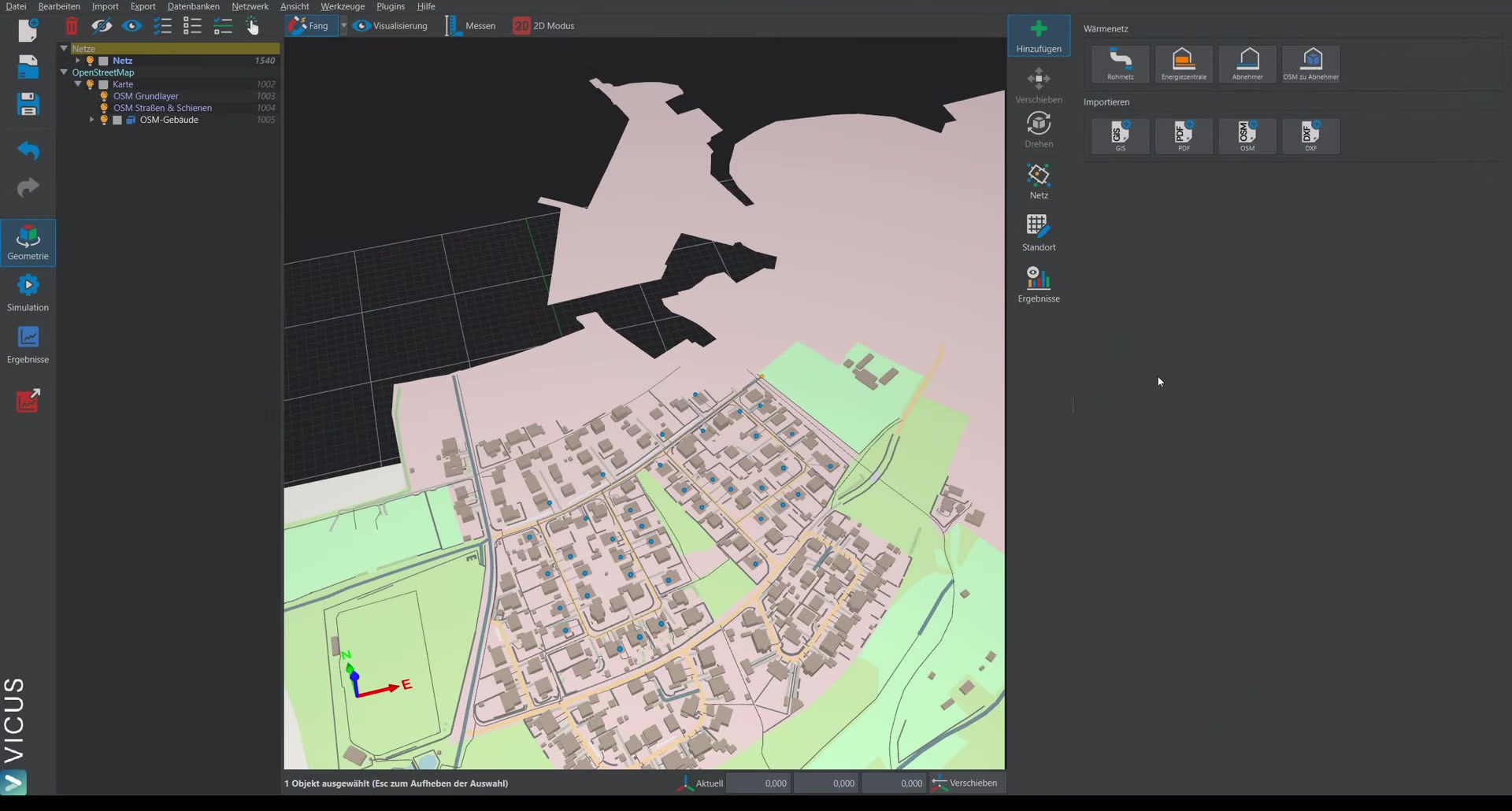
In VICUS Districts you can import PDF plans (such as development plans) or images as a background drawing. The imported plan serves as a visual reference for network planning.
Importing a PDF ▶ 0:27
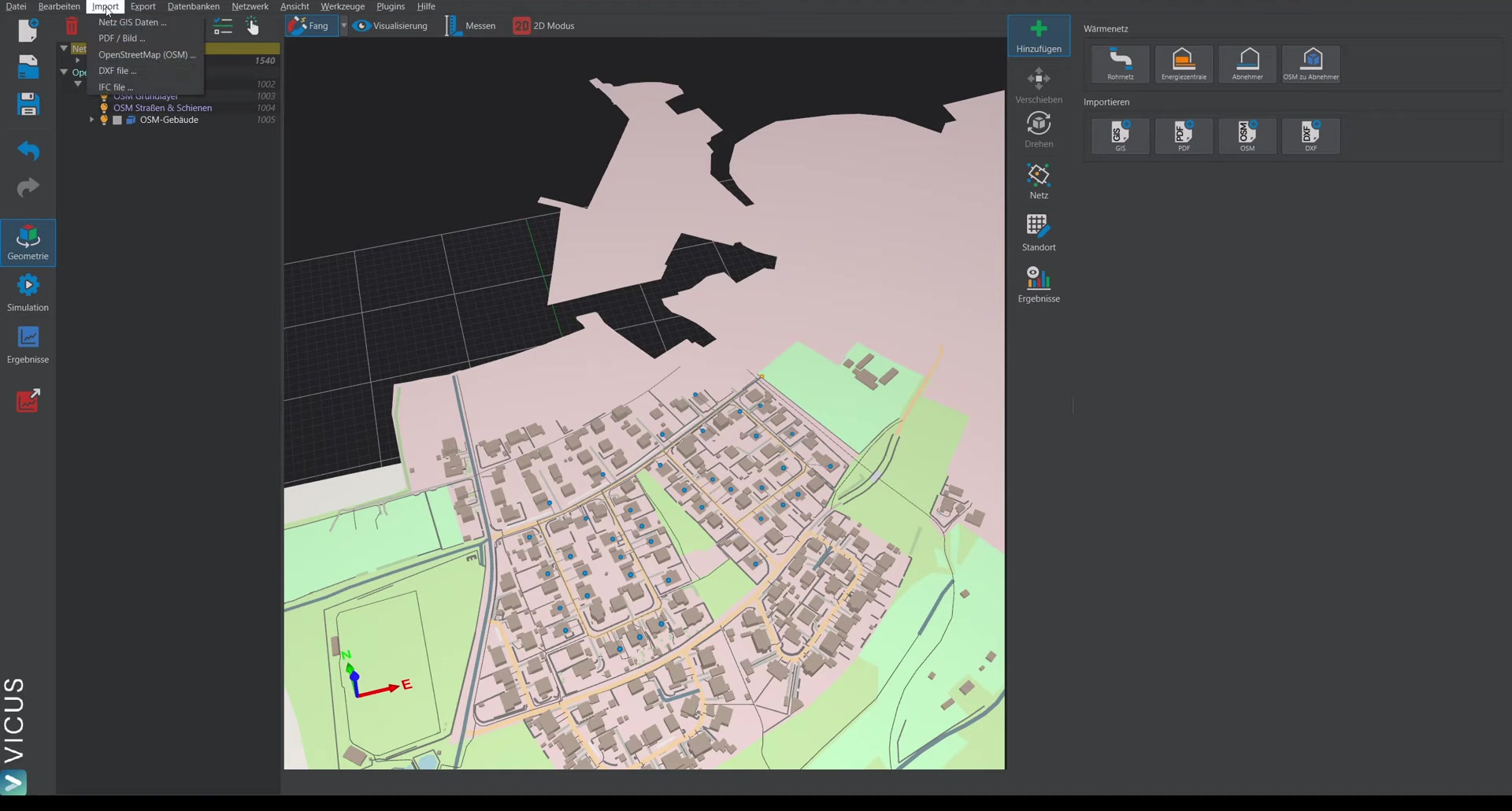
- Navigate to Import > PDF/image.
- Select the desired file (PDF or image file).
- In the preview, you must enter a reference length to define the scale.
Defining the reference length
To scale the plan correctly, reference a known length:
- Use, for example, a scale bar contained in the plan, a known plot length, or a building dimension.
- Click on the start point and then on the end point of the known distance.
- Enter the actual length in meters (e.g. 30 m).
- Confirm with OK.
Positioning the plan ▶ 1:08
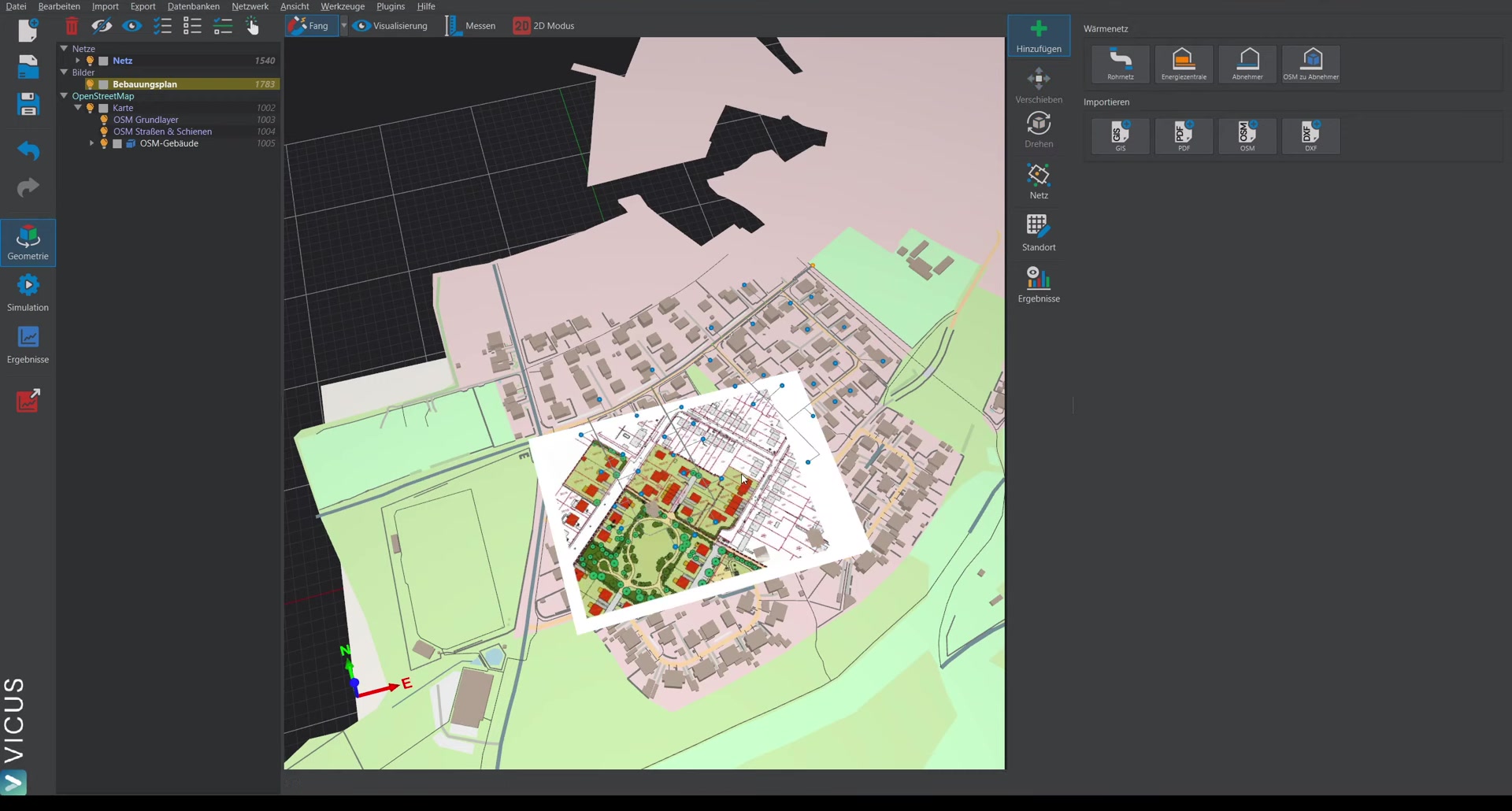
After the import, the plan has to be moved to the correct location:
- Select the imported plan — either directly in the view or via the navigation tree.
- Switch to move mode.
- Drag the yellow sphere with the mouse to move the plan freely.
- Alternatively, you can move the plan along a specific axis by dragging the red arrow (X axis) or the corresponding axis arrow.
Rotating the plan ▶ 1:48
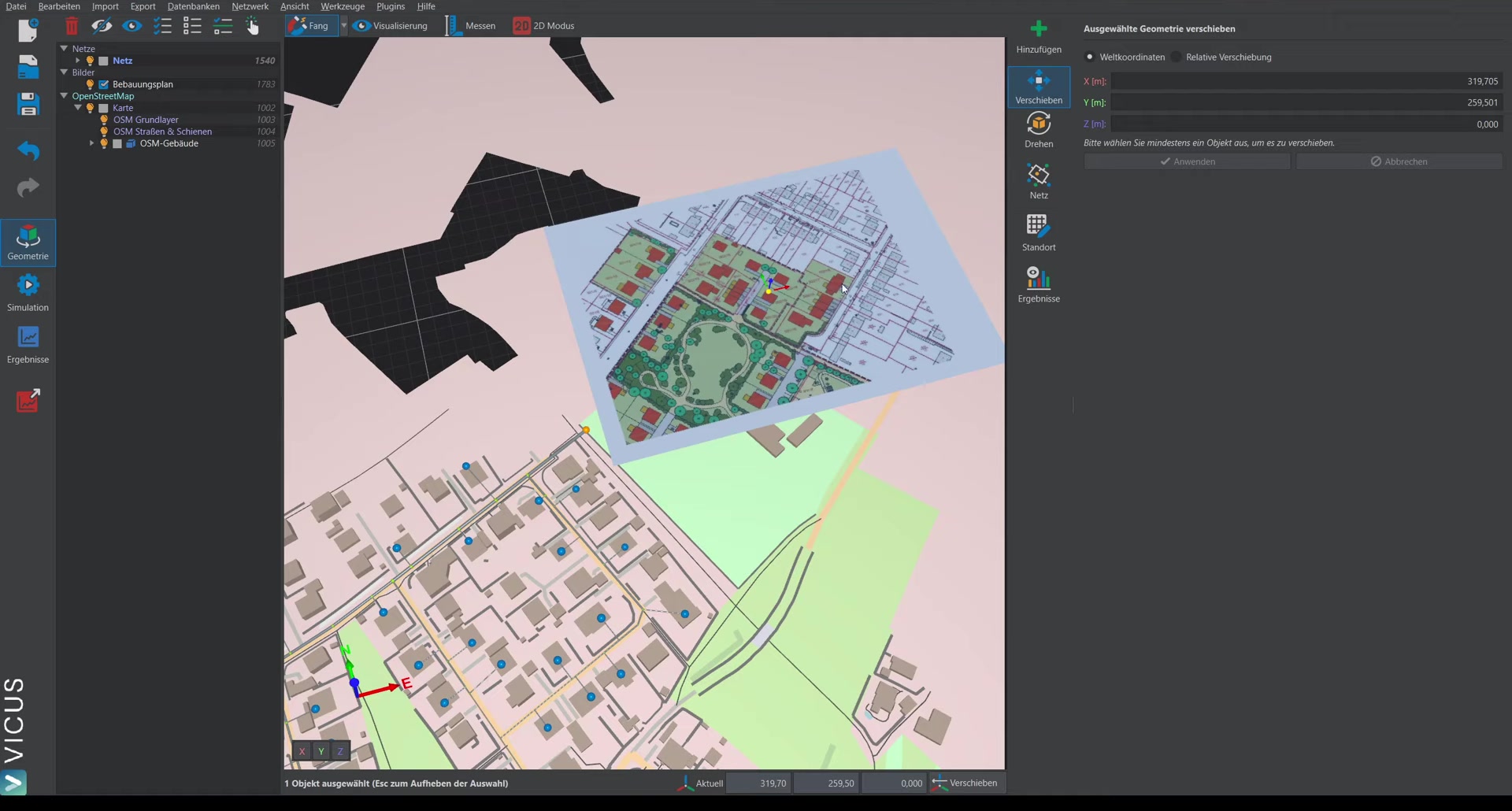
If the plan needs to be rotated:
- Switch to rotate mode.
- Enter a rotation angle numerically or drag the blue sphere to rotate the plan manually.
Adjusting the display ▶ 2:17
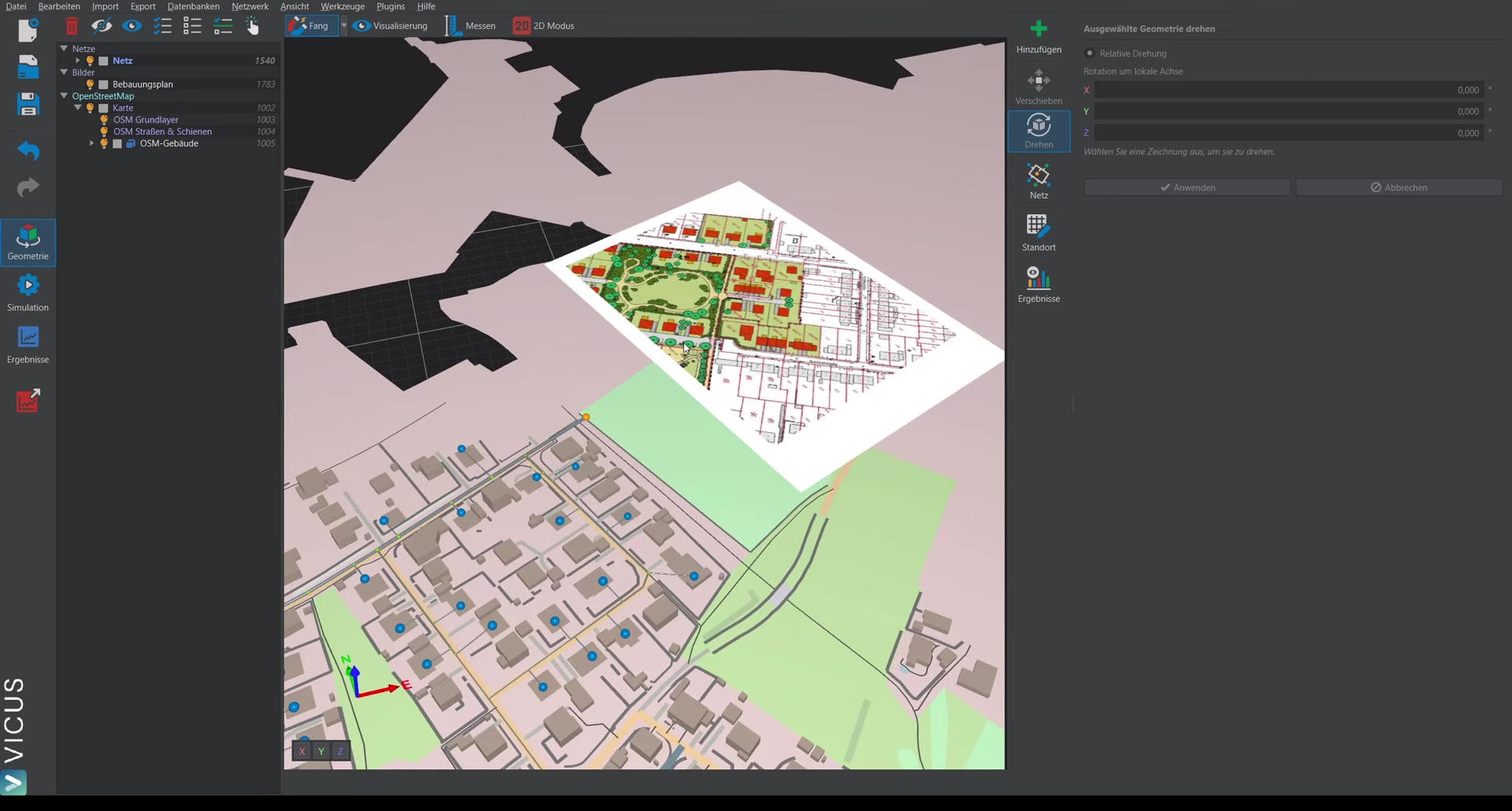
In the navigation tree, double-click the imported plan to make further adjustments:
- Visibility: Show or hide the plan.
- Reduce saturation or increase brightness to keep a better overview while planning the network.
Once positioned, deselect the plan with ESC and you can continue with the planning.