Export network plan as DXF
Export network plans as a DXF file and use them in CAD programs
Starting the export ▶ 0:24
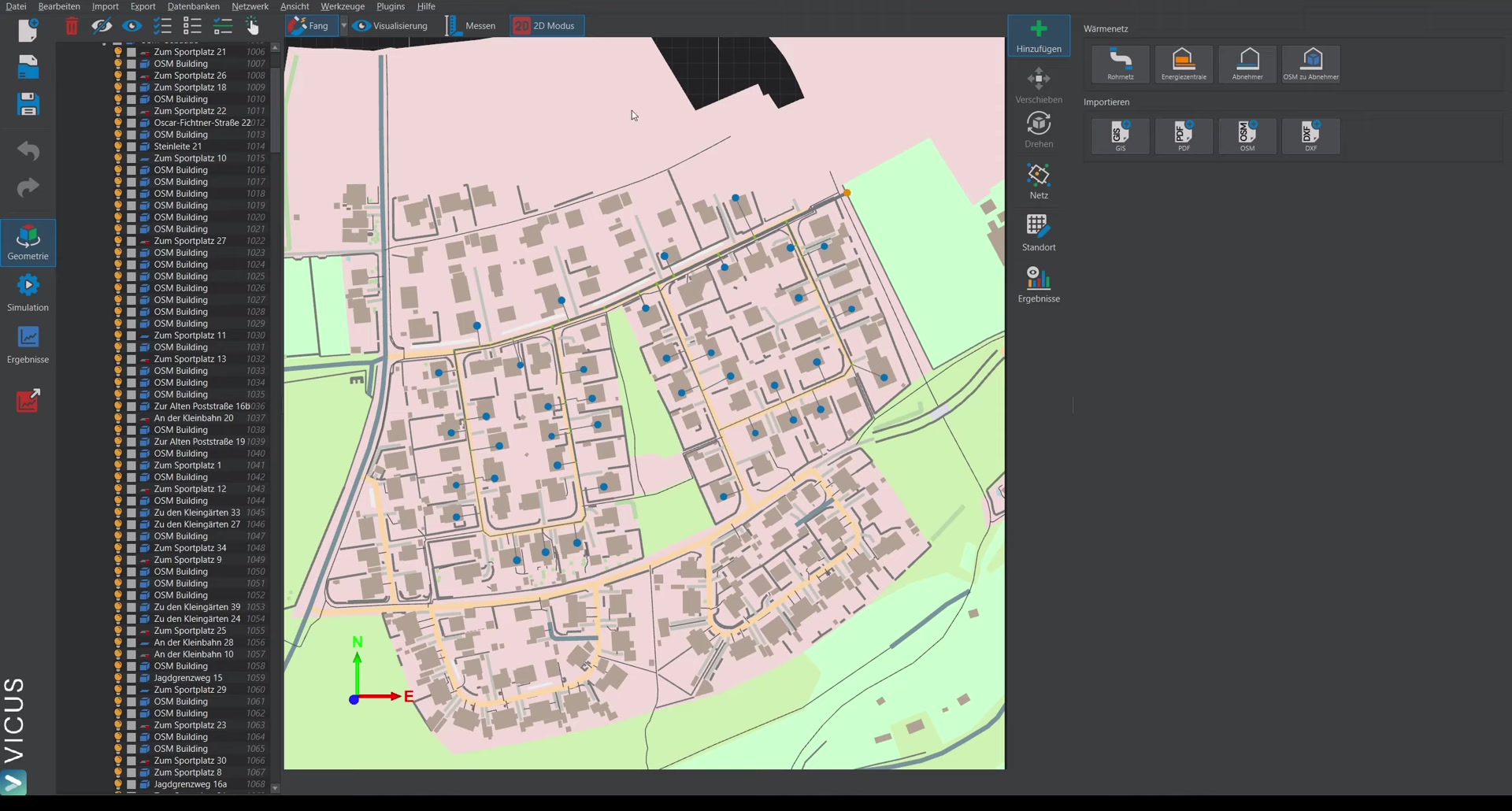
Navigate to Export > DXF drawing to open the export dialog. There you will find several options for graphical and data-level preparation of the plan.
Display options ▶ 0:32
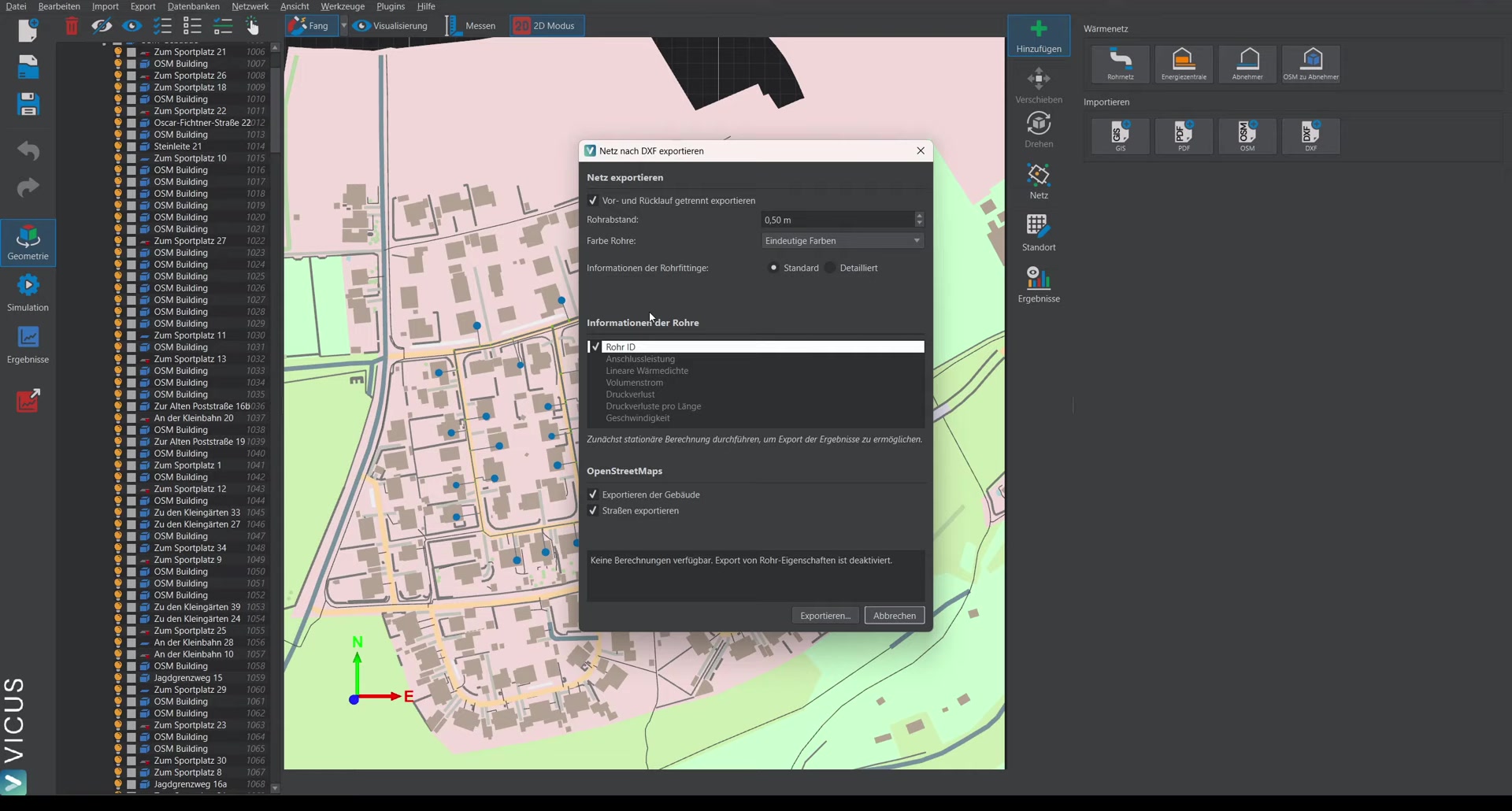
There are two main ways to display the network:
Separate pipes (supply and return)
Supply and return are drawn as separate lines. Tip: In this mode, use a uniform color to keep the plan clear.
Unified line
The network is displayed as a single line. Tip: Select the distinct colors option here so that each pipe dimension gets its own color and can be quickly distinguished.
Color coding ▶ 0:46
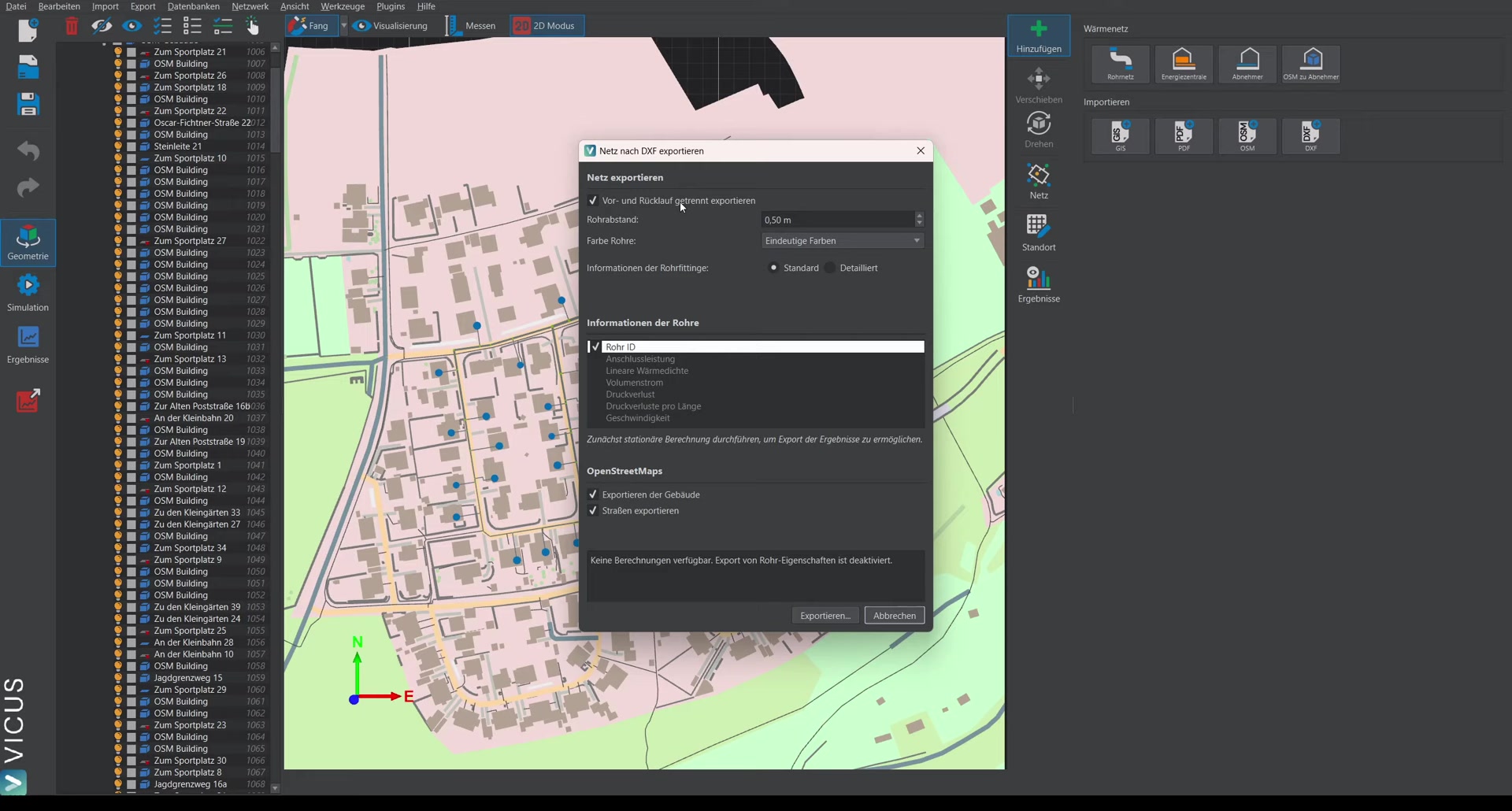
The color coding can be adjusted in the export dialog. The recommended combinations are:
| Display style | Recommended color coding |
|---|---|
| Separate pipes (supply/return) | Uniform color |
| Unified line | Distinct colors per pipe dimension |
Including calculation results ▶ 1:09
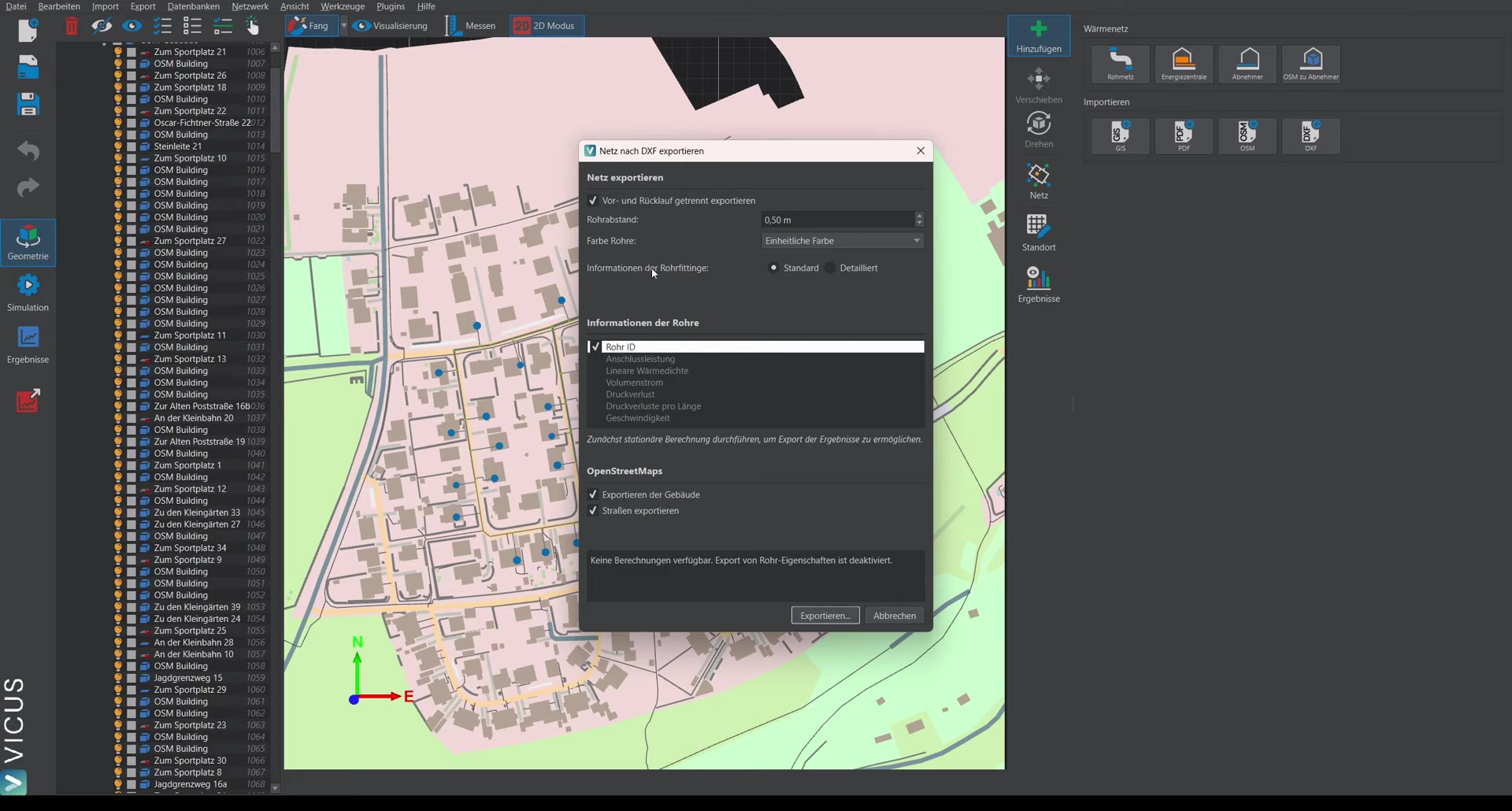
To make calculation results available in the export, a steady-state calculation must be performed beforehand. If the corresponding options in the export dialog are greyed out:
- Close the export dialog.
- Switch to network mode.
- Perform the steady-state calculation again.
- Reopen the export dialog.
The following calculation results can be embedded in the plan:
- Specific pressure loss
- Volume flow
- Pipe dimensions and IDs
Additional export options ▶ 1:16
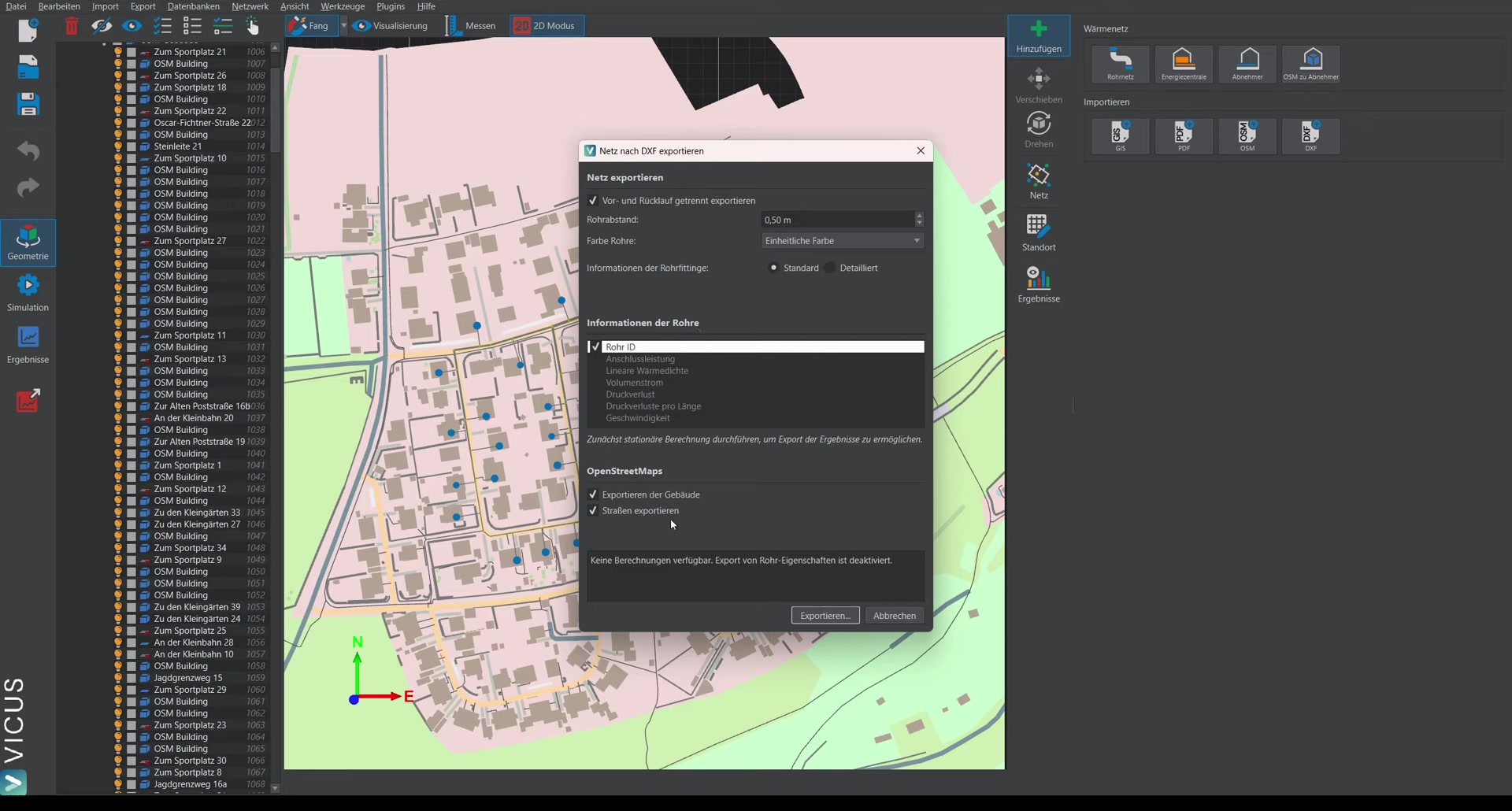
- OpenStreetMap data: Optionally, OSM data can be exported as a spatial reference.
Structure of the DXF file ▶ 1:54
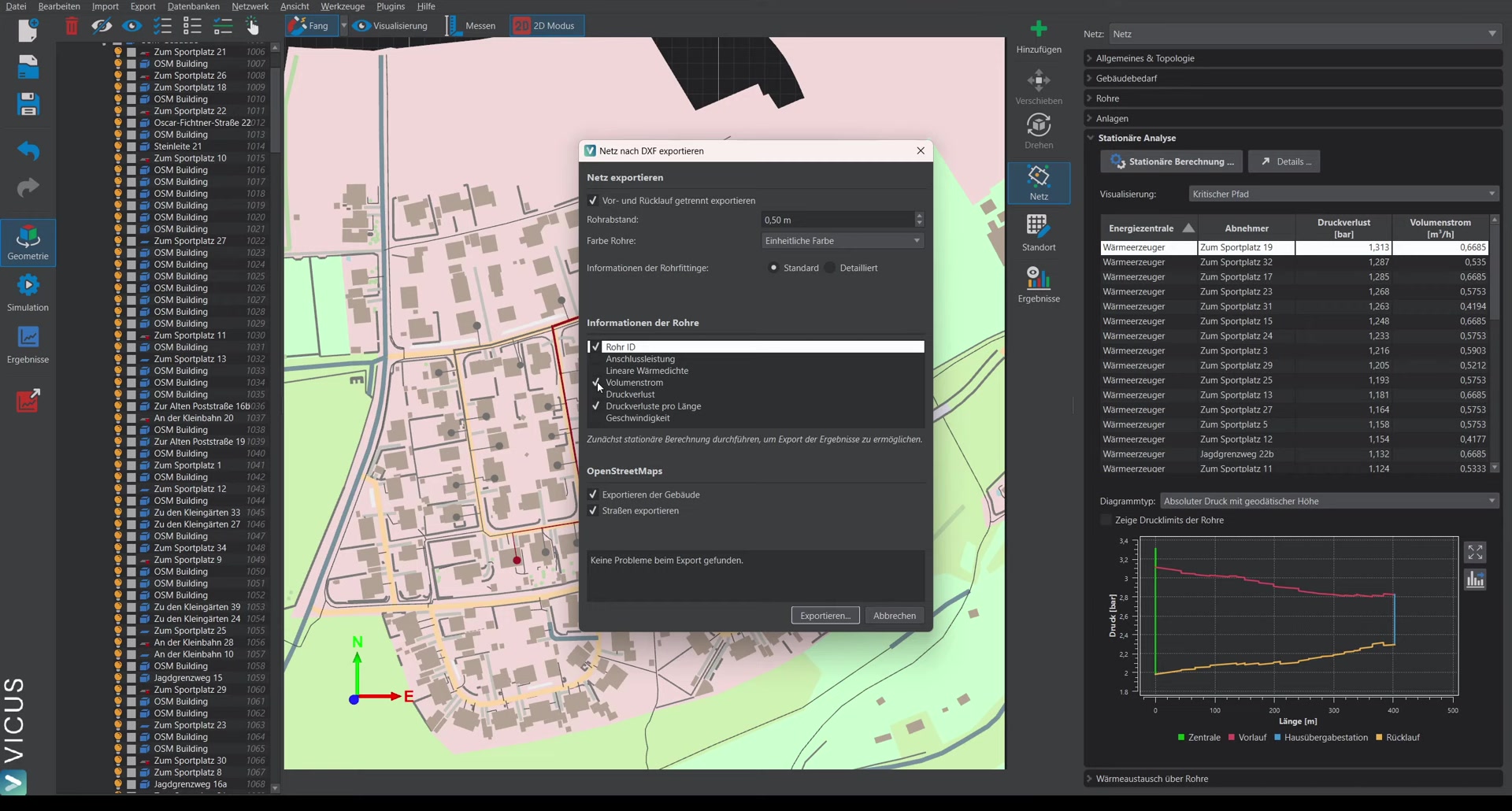
The exported DXF file is structured as follows:
- Labels: All selected parameters (volume flow, pressure loss, pipe dimension, ID) are automatically labeled in the plan.
- Layer system: Each pipe dimension and additional information sit on separate layers. This lets you flexibly show and hide details in the CAD program.